-
Viewing Local Variables in Script Debugger
The issue of how to view local variables (variables declared within an AppleScript handler) in Script Debugger keeps coming up. This problem has been an issue ever since Script Debugger 2.0 when local variable display was introduced. This issue surfaced again recently on the AppleScript-Users mailing list:
Hello, how can I see the value of y in the variables pane of Script Debugger when I run this simple example script in debug mode:

set x to 3

beeping(x)

on beeping(x)
	--local y
	set y to 5
	beep x
	delay 2
	beep y
end beeping

Bert.
Script Debugger requires all local variables be explicitly declared before they are displayed in the variables browser. AppleScript allows you to explicitly declare locals in several ways:
- explicitly using the ‘local’ statement
- as the loop variable in a ‘repeat with’ statement
- as a parameter to a handler
- as a parameter to an ‘on error’ statement
The problem arrises when a variable is declared implicitly through an assignment within a handler. In this instance, Script Debugger’s parser is not able to detect the new variable (y), and thus fails to display it in the variables browser.
The solution is the uncomment the ‘local y’ statement.
You can find additional information in the Script Debugger Help Book by searching for ‘local’ from the Help menu.
The AppleScript runtime does not provide public debugging hooks. As a result, Script Debugger must resort to a series of hacks to implement step-wise debugging and variable display. One of the limitations of this approach to AppleScript debugging is that Script Debugger must detect the names of all local variables at compile-time. AppleScript’s support for multi-word identifiers in dictionaries makes parsing AppleScript source a very problematic thing to do, and makes detecting local variables without knowing AppleScript’s internal state impossible.
-
Script Debugger 4.5.3 On-Line Help as PDF
Recently I have received several requests for Script Debugger 4.5’s On-Line help as a single PDF file. Matt Neuburg, who writes the Script Debugger 4 documentation, was able to oblige with a nicely hyperlinked PDF file.
Script Debugger 4.5.3 Help Book (PDF, 3.9MB)
-
Script Debugger 4.5 Can Take a Long Time to Open Scripts
A few customers have written me to report that Script Debugger 4.5 takes much longer to open their scripts than did Script Debugger 4.0.
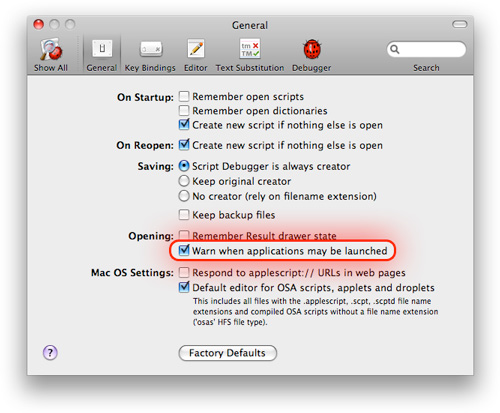
This slowdown is an unintended consequence of a new feature in Script Debugger 4.5 where Script Debugger warns you that opening a script will cause other applications to be launched.
This slowdown is most dramatic when opening scripts that target applications which have very large AppleScript dictionaries such as Adobe InDesign, Adobe Illustrator, or Microsoft Word. Generally the delay should only be felt the first time Script Debugger 4.5 reads the dictionaries for these applications. If Script Debugger is left running, it will reuse the dictionary information cached in memory.
Script Debugger 4.5.1 introduced a new ‘Opening: Warn when applications may be launched’ setting in the General Preferences panel that allows you to turn off the application launch warning when opening scripts. If the delay opening your scripts is slowing down your work or if the warning becomes irritating, you can use this preferences setting to disable the feature.

-
Finding OSA scripts with Spotlight
With the release of Script Debugger 4.0, I added a Spotlight searching capability for OSA scripts created with Script Debugger. Based on a series of customer support emails I realized that this is not a well documented aspect of the product. Here is a quick overview of how to use Script Debugger Spotlight support to find OSA scripts on your Macintosh.
NOTE: Spotlight indexing of OSA scripts only works for scripts that have beenn saved using Script Debugger. Scripts created with Apple’s Script Editor are not indexed.
Script Debugger provides indexing information for three aspects of your OSA scripts:
-
the source text of the script (kMDItemTextContent)
-
the script’s description (kMDItemDescription)
-
the script’s language name (kMDItemKeywords) which is normally “AppleScript”
Here some ways to find all the scripts on your Macintosh which target the Apple Mail application. First, we’ll search for documents containing “Mail” and with the AppleScript keyword:

This is good, but we get some documents that are not scripts. Instead, we’ll search for OSA scripts that contain “Mail”:

Perfect, all the OSA scripts on my machine that target the Apple Mail application.
-
-
Unix Newlines in Script Debugger
I recently had a customer struggling to embed multi-line Unix shell scripts within their AppleScript script using Script Debugger.
The problem is that Script Debugger’s default Newline character is CR (ASCII 13). This is a historical relic dating back to the Classic Mac OS days. When Apple introduced Script Editor 2, they changed the default newline from CR to LF. We chose to stay with CR to avoid breaking existing scripts.
This choice to remain with CR causes Script Debugger to operate differently from the Script Editor when editing multi-line string literals. This is particularly a problem when you are trying to embed multi-line Unix scripts (sh, perl, ruby, python, etc.) which expect LF newlines into an AppleScript script.
Fortunately, there is a solition. You can change Script Debugger’s default Newline character using the following terminal command (make sure you quit Script Debugger before issuing it):
defaults write com.latenightsw.ScriptDebugger PrefEditorNewLineIsCR -bool noOnce this command has been issued, Script Debugger will insert LF characters whenever you press return. When the newline character matters to you, I recommend also using the Show Invisibles command (View menu) to make Script Debugger show you the newline characters
One final note: AppleScript converts LF newlines to CR in text outside string literals and block commands when scripts are compiled or opened. Here again, Script Debugger’s Show Invisibles feature will make it clear which newline character is being used where.
-
Avoiding Word & Excel AppleEvent Crashes
Microsoft Word and Excel can crash frequently when the Script Debugger Explorer is used. These crashes can also be caused by AppleScript. Here are some tips for avoiding many of these crashing bugs.
- Turn off Script Debugger’s ‘Scan for elements of count fails’ Dictionary preferences option
Doing this will make it much less likely that Script Debugger’s Explorer will generate AppleEvents that cause Word or Excel to crash.
- Avoid using the Exists commands in your scripts
I have found that asking Word or Excel if a non-existent object exists will very often cause a crash. For example, if you open a new document and run the following script, Word will crash:
tell application "Microsoft Word"
	exists shape 1 of selection
end
The workaround is to use count:
tell application "Micorosft Word"
	try
		return count shapes of selection >= 1
	on error
		return false
	end
end
subscribe via RSS