-
FaceSpan 5 (Mark's Misadventure)
Back in May 2009 I made the difficult decision to abandon FaceSpan 5. This was a wrenching period in my life and it has taken a long time to recover. The failure of this project seriously stressed my relationship with a couple of good friends and cost me a lot of money and time. At last I feel like I have enough distance to begin to talk about what was accomplished and the mistakes I made.
I am a self-funded Indie (lone) developer. I made a number of classic business blunders on the FaceSpan 5 project. I broke the golden rule: never (never!) rewrite a software product. I massively underestimated the effort required to complete the product. I set off without having sufficient resources to complete the project. Because I took so long to complete my work, the market moved on – AppleScript’s importance to the customers I intended to target declined. Some may argue that the market was never really there to provide a return for a product of this complexity. Finally, I didn’t pull the plug soon enough. Hindsight its great.
Not all was lost. Some of the code I developed for FaceSpan 5 found a home in Script Debugger 5.
##A Little History
Many years previously I developed FaceSpan 3 under contract for its owner. As part of that effort I became impressed with FaceSpan’s power and simplicity. FaceSpan 3 was successful, for a development tool, and even received an Apple Design Award at that year’s Worldwide Developers Conference. Sadly, after my involvement with the product ended, FaceSpan fell into disrepair and did not make the leap to Mac OS X. FaceSpan’s developer finally produced FaceSpan 4 which was to little to late and not as successful as hoped for.
I acquired FaceSpan 4 in 2006 and, after a period where I tried to fix the most serious issues with the product, I concluded that FaceSpan 4’s dependance on AppleScript Studio was its core problem. FaceSpan 4 had great integration of a visual UI bilder and coder editor, but lacked a good runtime environment and debugging.
Work on FaceSpan 5 began in 2007 with the aim of freeing FaceSpan from AppleScript Studio and restoring the classic FaceSpan’s attractiveness. By the time I stopped FaceSpan’s development I believe I was well on my way to achieving my aims. Two great Mac developers helped me with the project:
- Adrian Ruigrok, who now works for Apple, developed much of the FaceSpan 5 IDE code.
- Matt Neuburg acted as a sounding board for my ideas and developed the initial FaceSpan 5 documentation.
The project turned out to be too ambitious given my resources. Additionally, FaceSpan revealed a number of AppleScript issues and problems in Apple’s Cocoa Scripting framework which I was ultimately unable to overcome.
##What Is (Was) FaceSpan?
FaceSpan 5 was an integrate tool for building Cocoa applications using AppleScript. Many people saw similarities to Apple’s HyperCard. FaceSpan provided a visual UI builder, an AppleScript editor, an AppleScript debugger and a runtime environment designed to take the best advantage of AppleScript’s strengths and provide a collection services and UI widgets out of which applications can be built. Matt wrote this description of FaceSpan 5 back when the project was active.
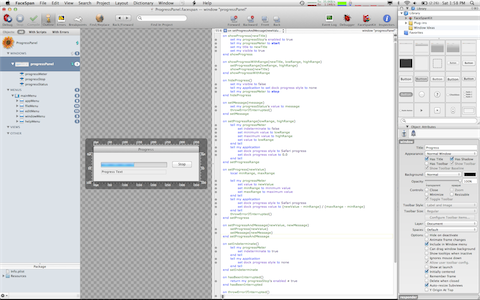
The FaceSpan 5 runtime environment wrapped Apple’s Cocoa Frameworks in a sanitized and simplified AppleScript focused programming interface. This allowed one to build fully Cocoa-native applications using AppleScript without having to learn anything about Cocoa. The intent was for Cocoa to be an implementation detail rather than the programming interface.
We’ll never know if the FaceSpan 5 approach was actually better than the AppleScript Studio interface offered by Apple. My hope was that FaceSpan’s approach was actually simpler, and not simply a substitution of one complicated programming interface for another.
Since FaceSpan 5 was abandoned there have been several developments in the area of AppleScript GUI tools. Firstly, Apple transitioned from AppleScript Studio to AppleScriptObjC. Shane Stanley has released his ASObjC Runner which can display progress dialogs. And then there is the long lived Appearance OSAX from 24U Software.
##The Last Build
When I stopped developing FaceSpan 5, a lot of people came out of the woodwork looking for a copy of the software. I was not willing to make the software available at that time, but I am now. I’m doing this now because I think it might be interesting for those of you who were/are curious about what I was working on to get a chance to play with the product.
Keep in mind that this build predates the release of Xcode 4 and there are some interesting similarities. Apple had to be developing parts of Xcode 4 during the same period so its fascinating to me how common ideas arrise in different places.
Before you download the software, please keep the following conditions in mind:
- This is Alpha-Stage software. This means that it is buggy and its not feature or UI complete. Expect it to crash and fail. If you stick to the examples included with the documentation, you should be okay.
- THE FACESPAN SOFTWARE IS PROVIDED AS-IS FOR EVALUATION PURPOSES ONLY. USE AT YOUR OWN RISK.
- PLEASE DO NOT FILE BUG REPORTS. I’m not going to produce another build.
- PLEASE DO NOT ASK ME TO OPEN SOURCE THE PROJECT. This product shares a lot of code with my Script Debugger product and I’m not willing to release the code.
- RTFM. Seriously, you are on your own.
- The software should run on Snow Leopard (10.6) or Lion (10.7). I have no idea if it will work on Mountain Lion (10.8) or beyond.
View Matt Neuburg’s Alpha Documentation.
I have withdrawn the FaceSpab 5 download as Mac OS X 10.9 (Yosemite) broke it - apologies
Have Fun!

-
FaceSpan 5 Development Suspended
I must reluctantly announce that I am suspending FaceSpan 5 development. I want to thank you all, particularly those that have contributed their time and effort to help me move FaceSpan 5 forward.
The just released FaceSpan 5.0d70 build will continue to run and has no expiry dates built in. The projects you build with it should continue to execute.
My reasons for suspending FaceSpan development are many. Chief among them are that I keep missing every deadline I have set for myself. I am now over 2 years into this project and I cannot clearly see how to wrap development up so that I have a product to sell. I also am feeling that in the time it has taken me to do this work, the world has moved on and AppleScript-based UIs are not going to be relevant in the marketplace. The Web, Flash and other technologies are moving much faster than AppleScript or I can match. Additionally, there many technical limitations in AppleScript and Cocoa Scripting that I keep having to hack around in order to make FaceSpan usable.
All of this has left me feeling burnt out and I need some perspective. So I’m going to down-tools on FaceSpan for an indefinite period of time. I’m hoping that I can find a way to revive or reuse the work I’ve done at some point in the future, but I have no specific plans at this time.
-
SQLite Demo
A number of people on the FaceSpan 5 mailing list have asked for an example project that shows how to use the SQLite plugin to make data persist within FaceSpan.
This FaceSpan example attempts to address this request. The demo presents a simple form in a window, and allows the user to enter data, update, add and remove records.
SQLiteDemo (120Kb)
-
Testing Pre-Release Software
By Shane Stanley
Testing pre-release software involves some interesting, and sometimes nerve-wracking, decisions. In most cases the best way to test is with a real job, but committing a large job to alpha software can involve a leap of faith. You have to weigh up what happens if it doesn’t work out, what the alternatives are, and even how much faith you have in the developer involved.
Several months back I took on a fairly large project, and this was the process I was going through. In some ways it was a straight-forward scripting job, but what complicated things was the need for a bit of user interface, plus the amount of code likely to be involved. I looked at the options: a series of applets with death-by-display-dialog, or the potential maintenance headache of AppleScript Studio. FaceSpan 5 was at least worth considering, even though it was a long way off release.
I’d already written a fair bit of code in the form of a couple of applets, so the first thing to try was to bring them into FaceSpan and see how much effort was involved.
The process was surprisingly easy, as was adding the basic UI I needed. I could see that things would get more complicated if I wanted to implement non-modal elements such as sheets, with a much more event-oriented approach required, but my immediate goal was to try to get the main basic dialog working. My first impression was one of comfort: the editing and debugging environment were largely similar to Script Debugger, if a little undeveloped in some areas (we’re still talking early development software). So far, so good.
I started running the resulting Facespan 5 apps, and got my second surprise: performance. The apps were mainly targeting InDesign and Illustrator, both of which have a script menu or panel. Anyone who has scripted them knows that there’s a big difference in how fast things happen when scripted from the menu/panel versus an external application.Â
But the FaceSpan 5 apps were driving both InDesign and Illustrator more like they were being run from a menu/panel: InDesign stuff happened much faster than when driven from a normal AppleScript applet, and with Illustrator the difference was massive – almost an order of magnitude. This was a big plus for this project.
By now the amount of code was growing, and I had to look at how to manage it. The traditional AppleScript way is to save handlers in libraries, and load them into variables at launch time.Â
But libraries involve issues like where to store them, and when it comes to debugging they’re a bit like black boxes. That’s fine when you have well developed code in them, but it can be inconvenient on a project where you’re developing both the library code and the main code at the same time, and the requirements are changing. You end up doing things like putting handlers inside scripts until you have them debugged, and then juggling them – the code management issues start to make the code writing a lot harder.
I was hoping for a better approach, and FaceSpan 5 had it in the bag – objects called bags that are nothing more than containers for holding code.
The advantages of using bags soon became apparent because of another FaceSpan 5 feature, delegation. So I could put some of my “library” handlers in a bag, delegate the bags containing the main code to this library bag, and call the handlers without having to jump through the hoop of loading the bag into a global variable and referencing it that way from then on – I just call dosSomething(), and if there in no doSomething() handler in the bag where it’s called, it just looks further up its delegation chain until it finds one.Â
There are a couple of gotchas, but using bags like this really helped me focus on the code, especially at the stage where I was rearranging things and moving stuff about. As a bonus, doing it this way reduces launch time because there’s no need to load slabs of code first – they don’t get loaded until called, and not at all if they’re not called.
The other big advantage of using bags is in debugging: you can step through your script, in and out of handlers in other bags, seemlessly. And having a series of smaller bags of code that you can easily switch back and forth between, without having to worry about what’s in what file or bundle, makes managing a larger project so much simpler. It’s hard to explain, but it seemed to make it easier to arrange the code to reflect how it all interacted.
I still have a wish list, and I still occassionally copy chunks of code into Script Debugger for debugging. At the same time, I’m also moving smaller projects that could happily be done as applets into FaceSpan, largely for the performance gain. And there’s still lots of stuff in FaceSpan I haven’t started exploring. But so far I’m a very happy, and enthusiastic, “tester”.
-
AppleScript Speed Boost
We have discovered that AppleScirpt code runs faster in the FaceSpan runtime than it does in Apple’s applet/droplet environment. Â One of our testers has found that he has been able to dramatically improve the performance of several of his AppleScript applets by simply transplanting their code into a FaceSpan project.
FaceSpan 5.0 provides two template projects (Applet and Droplet) to make this transition simpler.
-
Displaying Lists - Part 2
In my first Displaying Lists post, I described how to use an HTML view to display a list of values formatted using a CSS stylesheet. This time I’ll use an XSL stylesheet to convert the XML data into HTML for display.
The advantage of using XSL over CSS is that you can restructure the incoming XML data in any way you like. For instance, with CSS, you are stuck with the order of XML elements, but with XSL you can re-order them. Additionally, the XSL stylesheet can incorporate additional HTML markup, such as column headings.
Here’s a fairly simple XSL stylesheet that converts the XML into an HTML table, complete with headings.
<?xml version="1.0" encoding="UTF-8"?>
<xsl:stylesheet xmlns:xsl="[www.w3.org/1999/XSL/...](http://www.w3.org/1999/XSL/Transform)" version="1.0">
  <xsl:output method="html"/>

  <xsl:template match="doc">
		<html>
		<head>
			<title><xsl:value-of select="@name"/></title>
			<link rel="stylesheet" type="text/css2" href="foo.css"/>
		</head>
		<body>
		  <table width="100%" border="0" cellpadding="0" cellspacing="0">
			<tr>
			  <td>
				<table width="100%" border="0" cellspacing="1" cellpadding="0">
				  <tr>
					<td height="15" width="140" nowrap="yes">
					  <table width="100%" height="15" border="0" cellpadding="0" cellspacing="0">
						<tr>
						  <td class="tablehead">Name</td>
						</tr>
					  </table>
					</td>
					<td height="15" width="140" nowrap="yes">
					  <table width="100%" height="15" border="0" cellpadding="0" cellspacing="0">
						<tr>
						  <td class="tablehead">Modification Date</td>
						</tr>
					  </table>
					</td>
					<td height="15" nowrap="yes">
					  <table width="100%" height="15" border="0" cellpadding="0" cellspacing="0">
						<tr>
						  <td class="tablehead">Path</td>
						</tr>
					  </table>
					</td>
				  </tr>

				  <xsl:apply-templates/>

				</table>
			  </td>
			</tr>
		  </table>
		</body>
		</html>

  </xsl:template>

  <xsl:template match="row">

		<xsl:variable name="rowStyle">
			<xsl:choose>
				<xsl:when test='(position() mod 2) = 1'>oddRow</xsl:when>
				<xsl:otherwise>evenRow</xsl:otherwise>
			</xsl:choose>
		</xsl:variable>

	    <tr valign="top"><xsl:attribute name='class'><xsl:value-of select='$rowStyle'/></xsl:attribute>
		  <td height="14" width="140" class="tabletext">
			<xsl:value-of select="./name"/>
		  </td>
		  <td height="14" width="140" class="tabletext">
			<xsl:value-of select="./date"/>
		  </td>
		  <td height="14" width="100%" class="tabletext">
			<xsl:value-of select="./path"/>
		  </td>
	    </tr>
  </xsl:template>
</xsl:stylesheet>
And here’s the AppleScript code that generates the XML data, and displays it in an HTML view. Its very similar to the CSS example. The key difference is the inclusion of the <?xml-stylesheet type=“text/xsl” href=“foo.xsl”?> directive in the XML data which directs the HTML view to apply the foo.xsl stylesheet to the data before displaying it.
on didInvokeListFinderFiles(theObject)
	local rsrcsFolder, theNames, theURLs, theDates, theXML

	set rsrcsFolder to POSIX path of (get my application's resources folder)

	try
		--	Generate XML listing the files in the top Finder window
		tell application "Finder" to ¬
			set {theNames, theURLs, theDates} to {name, URL, modification date} of items of first window

		set theXML to {"<?xml version="1.0"?>"}
		set end of theXML to "<?xml-stylesheet type="text/xsl" href="foo.xsl"?>" -- associated a XSL stylesheet with this XML document
		set end of theXML to "<doc>"
		repeat with i from 1 to length of theNames
			set end of theXML to "  <row>"
			set end of theXML to "    <name>" & (item i of theNames) & "</name>"
			set end of theXML to "    <path>" & (item i of theURLs) & "</path>"
			set end of theXML to "    <date>" & (item i of theDates) & "</date>"
			set end of theXML to "  </row>"
		end repeat
		set end of theXML to "</doc>"

		--	Convert the list of strings we have accumulated into one long string that we can display
		set AppleScript's text item delimiters to {return}
		set theXML to theXML as string

		--	A this point we end up with an XML document looking something like this:
		--
		--	<?xml version="1.0"?>
		--	<?xml-stylesheet type="text/xsl" href="foo.xsl"?>
		--	<doc>
		--	  <row>
		--	    <name>AbstractConnection.h</name>
		--	    <path>file://localhost/Users/mall/Desktop/connection/trunk/AbstractConnection.h</path>
		--	    <date>Friday, July 13, 2007 4:59:01 PM</date>
		--	  </row>
		--	  <row>
		--	    <name>AbstractConnection.m</name>
		--	    <path>file://localhost/Users/mall/Desktop/connection/trunk/AbstractConnection.m</path>
		--	    <date>Friday, July 13, 2007 4:59:01 PM</date>
		--	  </row>
		--	  ...
		--	</doc>

		--	Display the XML in an HTML view using an XSL stylesheet to make it look like a nice pretty table.
		tell my htmlView
			set value MIME type to "text/xml" -- makes the HTML view treat the string as XML rather then HTML
			set value base URL to (path to resource "foo.xsl") -- tells the HTML view where the resources are (stylesheets, CSS & gifs)
			set value to theXML -- apply the XSL stylesheet and display the resulting HTML
		end tell
	on error errMsg
		display alert "No Finder Window" message "Please open a Finder window to list." buttons "OK" over my window
	end try
end didInvokeListFinderFiles
When you put all this together in FaceSpan, here’s what it looks like:

-
Coming from FaceSpan 3
A few messages on the FaceSpan 5 Alpha mailing list have described the difficulties FaceSpan 3 users face when trying to get up and running with FaceSpan 5.
I’m going to use this blog post to collect a summary of the differences between FaceSpan 5 and FaceSpan 3. This list will no doubt grow over time as we learn more about how best to program FaceSpan 5.
So here we go:
-
The names of many properties have changed. When the FaceSpan 5 dictionary settles down, I’ll prepare a table that maps the old FaceSpan 3 names to the new FaceSpan 5 names. Until then, you’ll have to use the FaceSpanKit dictionary to find the new names.
-
You can safely ignore FaceSpan 5’s delegates when starting out with FaceSpan 5. FaceSpan 3 message dispatching is identical to FaceSpan 5’s default way of dispatching events (i.e. upwards the containment hierarchy: view -> window -> application).
-
FaceSpan 3 allowed you to reference any view from any other view. This allowed you to say things like text view “myViewName” in any other view’s script and FaceSpan would search the window for you.
In FaceSpan 5, you have to explicitly reference the window using my window’s text view “myViewName” (or more directly: my window’s myViewName).
- There are no storage items. However, you can simulate storage items using Bag objects. Just create Bag instances at the application level in the IDE. You can then use the Bag’s persistent data property to store information that should be retained between application runs.
…more later
-
-
LAMEncoder, Spawn of FaceSpan!
FaceSpan 5 is under development. That means it isn't finished. But it also means that to some degree — indeed, to a rather impressive degree — it is finished. It isn’t all there, but there is certainly something there. And that something is remarkably viable. To illustrate this, I took advantage of FaceSpan 5 to do the very thing FaceSpan 5 is intended to do — to write a complete, useful, “shippable†application. In fact, I’ve actually “shipped†this application, which is called LAMEncoder, and you can download it (here) and try it out.
The very fact that I was able to do this should serve as an indication of just how rich and how powerful FaceSpan 5 is already, even in its current state.
Glass half empty, glass half full
There are actually two main areas in which FaceSpan 5 isn’t finished yet:
The IDE. By this I mean the environment in which you work as you develop your application. For example, you can drag a button into a window to tell FaceSpan that there should be a button at this location in this window. But, so far in FaceSpan’s growth, no guidelines appear to show you when the button is at the correct position (a certain number of pixels from the edge of the window, or aligned with other widgets in the window), and you can’t yet double-click on the button to change its title (you have to work in FaceSpan’s “inspector†palettes). Also, when you’re debugging, certain powerful Script Debugger features, such as breakpoints, aren’t yet implemented in FaceSpan.
The “widget†repertoire. Certain standard interface elements that lots of people would like to use just aren’t there yet, or are present only in rudimentary form.
Despite these current limitations, the actual process of developing LAMEncoder was wonderfully fast and easy. In fact, I’d have to say (not without a certain amount of prejudice, to be sure) that FaceSpan 5 is already shaping up to be the best application development environment I’ve ever used. The IDE has enough functionality, and we have enough interface widgets in place, that we’ve passed a certain tipping point of usability and usefulness.
Indeed, I can specify for you quite precisely what tipping point it is. Very early on, when FaceSpan 5 was just a gleam in Mark’s eye, he posed me a challenge: At some point, he hoped, there would come a day when I would tell him that I’d rather develop using FaceSpan than any other development environment. That day is here. Not since HyperCard has an IDE felt so satisfying and easy to me. In a future article, I’d like to write more about that, using the organization and development of the LAMEncoder code to illustrate.
In this article, though, I’ll just describe the finished product, LAMEncoder itself, particularly with regard to its interface. This (and using LAMEncoder itself, of course) should give you an idea of just how powerful FaceSpan is, even now.
The LAME game
So. What does LAMEncoder do? It encodes WAV and AIFF files to MP3 using the freeware LAME encoding engine. I prefer LAME to iTunes’ MP3 encoding engine. But LAME is a command-line tool, and I can never remember the commands. LAMEncoder’s purpose is to remember and construct those commands for you. You hand it some WAV or AIFF files, and set the parameters the way you want them. Then you press the Convert button, and LAMEncoder uses the LAME engine to encode the files to MP3.
If this sounds familiar, it should. The idea comes straight from the LAME Encode Automator action developed starting on p. 452 of my AppleScript book. That Automator action wraps an AppleScript script in “just enough interface†to make it convenient and powerful. LAMEncoder wraps the same functionality in even more interface — enough interface to constitute a full-fledged, stand-alone application.
Here’s the main window:

In the screen shot above, notice the tooltip. All the interface widgets have tooltips, and, like this one, many of them are dynamic - they change depending on the situation. Here, the tooltip is explaining why the file list area is blank. Once we hand LAMEncoder some files to convert, the tooltip will automatically read differently (as we shall see later).
There are three ways to hand LAMEncoder some files to convert. One way is to press the Add File button in the toolbar at the top of the window. When you do, a standard Open File dialog appears:

In the above screen shot, I’ve selected an AIFF file. Now I’ll press Add. The Open File dialog closes and the selected file appears in the list:

Notice that the Clear and Convert buttons have become enabled as well. They were disabled before, because, with nothing in the file list, there was nothing useful they could do.
Another way to add files to the list is to press the Add Folder button in the toolbar. When you do this, a standard Choose Folder dialog appears:

When I choose the “wavs†folder and click Add, any AIFF or WAV files in that folder are added to the list:

Naturally, the toolbar isn’t the only place to access the Add File and Add Folder functionality; after all, the user could hide the toolbar, or even customize it to remove those buttons. So the same functionality is also present in the menu, complete with keyboard shortcuts:

The third way of adding files, not illustrated here, is to drag them from the Finder into the list.
HTML View benefits
At this point we should pause to answer a burning question that I’m sure you’re racking your brains over right now: what the heck is this interface widget in which the file list appears? It clearly is not a standard Table View. And that makes sense, because the Table View is one of the important interface widgets that hasn’t been written into FaceSpan 5 yet.
This was probably the biggest limitation of the FaceSpan 5's current state that I faced when writing LAMEncoder. It meant that I had to find a workaround means of displaying a scrolling list of the files the user wanted to encode. The workaround was to use FaceSpan’s HTML View widget. Yes, that area in the middle of the window is actually a Web browser! LAMEncoder structures the list of files as HTML and hands that HTML to the HTML View widget.
An HTML View widget is a powerful animal in FaceSpan. To see how powerful, take a look at this next screen shot:

The above screen shot displays the tooltip for the HTML View when the list actually contains some files. Notice that it has changed from the tooltip we saw earlier. Notice also that it claims we can click on a file name to play that file. Let’s try it! We click on the last file in the list, and a dialog appears:

You can’t hear it, of course, but in that screen shot the dialog really is playing the WAV file. That part is easy, because FaceSpan has a Movie View widget; the dialog’s interface is nothing but a movie controller, and QuickTime knows how to play AIFF and WAV files. But how is it possible that you can click in the list of files in order to play a file? Well, as I said, an HTML View widget is a powerful thing in FaceSpan. One of the powerful things it can do is intercept the user’s request to navigate to a link. The names of the files are links. So when the user clicks on the name of a file, that’s a link navigation request; the HTML View hears about this, and instead of actually navigating to anything, it hands the information about the link over to the file-playing dialog, which opens and plays the file.
Incidentally, the power of an HTML View is also why we can drag and drop a file from the Finder in order to add it to the list. This is quite remarkable, because in general, drag-and-drop is one of the things that isn’t implemented yet in FaceSpan! But an HTML View is its own little world, and it already knows how to respond to drag-and-drop. When it does, this counts as navigation (basically, it counts as an attempt to open a file). In LAMEncoder, the HTML View intercepts this attempt, and instead of navigating anywhere, it effectively hands the file over to the Add File button.
Encoding in action
So now that we’ve created a list of files to convert, let’s actually convert the files in the list. First, we use the “Conversion parameters†area of the window to set up how the conversion will be performed. In this next screen shot, I’ve decided to use CBR (constant bitrate) encoding, and I’ve entered a bitrate value of 320 for very high quality:

Notice that the text above the popup menu has changed from
lame --preset standardtolame --preset cbr 320. That text represents the command-line parameters that will actually be sent to LAME to perform the encoding. The change in the text happens automatically as you play with the “Conversion parameters†interface.Furthermore, however you set the “Conversion parameters†interface is automatically remembered by LAMEncoder when you quit, by being written into the application’s user defaults (its Preferences .plist file); when you start up LAMEncoder again, that information is fetched from the user defaults and the “Conversion parameters†interface appears just the way you left it when you quit. That sort of thing, which adds a nice professional touch to our application, is extremely easy in FaceSpan.
Anyway, now we press the Convert button. The Terminal opens and LAME is started, with the files and conversion parameters that we specified in LAMEncoder’s window:

That may seem a little nerdy, but for that very reason I like it. LAME provides nice progress feedback as it runs in the Terminal, so it makes sense to me to hand over the actual conversion process to the Terminal and let LAME do its thing. Meanwhile, LAMEncoder itself is free for further use; having handed off the correct command to the Terminal, it returns instantly and sits idle. The user can even quit LAMEncoder at this point, while the Terminal chugs merrily along, encoding the files.
Finishing touches
Now I’d like to point out a few of the finishing touches in the LAMEncoder interface that give it a full-fledged, “professional†application quality. First, there’s a standard About dialog:

All the underlined blue terms are links that the user can click to go to the relevant Web pages.
LAMEncoder also has a second About dialog, which properly attributes the LAME engine and provides the text of the LGPL agreement under which it can be used in an application. That’s required, because LAMEncoder actually includes a copy of the LAME engine inside itself:

(Incidentally, the above window is the only part of LAMEncoder containing an interface widget that isn’t really built into FaceSpan. The scrolling Text View containing the text of the LGPL is implemented through a “plug-inâ€, which is essentially a bundle of Objective-C code. Eventually, the Text View will be a native FaceSpan widget.)
Next, LAMEncoder has some preferences that the user can set. When you choose Preferences from the LAMEncoder menu, the preferences dialog appears:

As you can see, we have two preferences here.
First, using radio buttons, the user can decide whether to use the LAME engine built into LAMEncoder, or to use a copy of the LAME engine that may already be installed on the user’s computer. This is because it’s possible to compile LAME yourself, possibly using settings optimized for your processor, and we wouldn’t want to prevent a user who has done so from using that specially compiled LAME.
Second, having chosen the second radio button, it is also necessary to press the Set button and tell LAMEncoder where that on-disk copy of the LAME engine is. In this case, I’ve specified a bogus location; there is no copy of LAME on my desktop. If I press the second radio button and try to dismiss the preferences dialog, I’ll get an error alert:

The preferences dialog then opens again, forcing me either to use LAMEncoder’s internally provided LAME engine or to specify a location where there really is a copy of the LAME engine on my hard disk.
Finally, like any good application, LAMEncoder provides online help:

The user chooses from the Help menu, and the online help appears (in this case, it’s a page of HTML, and opens in the user’s default browser).
Future directions
So much for LAMEncoder itself. There are two kinds of future directions I’d like you to be thinking about.
First, there are future directions for LAMEncoder. Now that this version of LAMEncoder is finished, it’s easy to add further features. For example, right now LAMEncoder implements only the
--presetsubset of LAME commands (because those are the only ones I really use). It would be easy to add even more LAME commands, making LAMEncoder an even more powerful, complete front-end interface to LAME.Second, there are future directions for FaceSpan 5 — and for you. If LAMEncoder is the kind of application FaceSpan 5 can create right now, think what kinds of application it will be able to generate in the future. Clearly, this is an application development tool worth watching. Stay tuned!
-
GraphX Plugin
The recent FaceSpan 5.0d42 build includes a graphing plugin based on Chad Weider’s GraphX framework. Chad’s framework provides three graphing views: curve, histogram and scatter plot.
As always when creating FaceSpan plugins from Cocoa frameworks, the tough part is converting the Cocoa APIs into a simple to use AppleScript syntax. In the case of these graphing views, I have substituted the ‘Data Source’ based APIs with a simple event for the curve view, and a value property that accepts a list of values to be graphed (a list of reals for the histogram and a list of x-y points for the scatter plot).
Here’s how it all looks running in a FaceSpan-built application:

The code for the curve view looks like this:
--
--	CT curve uses this event handler to get the data to be graphed
--
on CT get y value theCTCurve for theXValue
	return theXValue * theXValue * theXValue + 1.0
end CT get y value
The event is called repeatedly by the curve view to generate the data to be graphed.
The code for the histogram looks like this:
on initialize theResponder
	--	CT histogram needs a list of reals to graph
	set theData to {}

	repeat with i from (x axis minimim) to (x axis maximum)
		set end of theData to random number from 1 to 10
	end repeat
	set value to theData

end initialize
Here I simply generate a random series of values and assign them to the view’s value property. The plugin does the rest.
And finally, the code for the scatter plot looks like this:
on initialize theResponder
	--	CT scatter plot requires a list of points (x, y pairs) to graph...

	set yValue to 1.0
	set theData to {}

	repeat with i from (x axis minimim) to (x axis maximum)
		set end of theData to {i, yValue}
		set yValue to yValue + (random number from 0 to 2.0)
	end repeat
	set value to theData

end initialize
Again, I simply generate a random series of point values and assign them to the view’s value property. The plugin does the rest.
The sources for the plugin are included in the FaceSpan 5.0d42 SDK.
-
Forking Scripts
One of the precepts of FaceSpan programming is that your event handlers should run as quickly as possible to avoid blocking the FaceSpan user interface.
However, this is at odds with how AppleScript is commonly used to orchestrate the actions of other applications. One generally begins a long process that involves directing one or more applications to complete a task. Even if the AppleScript code is short, it may have to wait for another application to complete a lengthy operation.
The question becomes how best to accomplish this kind of AppleScript automation in FaceSpan. One answer is forking. This involves breaking the long-running portion of your project’s AppleScript code out into a separate script, and then running that script in its own Unix task. However, you want to do this in a way that keeps all the benefits of running AppleScript code within the FaceSpan environment (delegation, access to the UI, etc.).
The answer is to use AppleScript’s parent property to link the forked script back to the FaceSpan responder (e.g. a button) that forked it. Here’s a simple example of a long running AppleScript that uses this technique:
using terms from application "Forking" -- the name of the FaceSpan project
	property parent : application "Forking"'s pushMe
	--	From this point onward, all commands and property access is directed
	--  at the "pushMe" button.  Note that this includes scripting addition
	--	commands!

	on doSomethingTimeConsuming()
		delay 1
	end doSomethingTimeConsuming

	try
		--	Simulate a long-running AppleScript task
		repeat with i from 1 to 10
			reportProgress(i) -- tell the main app how far we have gotten
			doSomethingTimeConsuming()
		end repeat

		--	To send commands to the process running this script rather than
		--	the main FaceSpan application, you must do the following:
		tell current application to current date

		--	Report back to the main application that we are finished
		reportAllDone()

		--	Prove that this code can be written as if its running in FaceSpan:
		display alert "Done" ¬
			message "I've finished wasting some time" ¬
			buttons "OK" ¬
			over my window
	on error errMsg
		set responderName to get my name
		display alert "Runtime Error" ¬
			message "Error in " & responderName & "'s forked script: " & errMsg ¬
			buttons "OK" ¬
			over my window
	end try
end using terms from
This code is saved as a standard AppleScript compiled script using Script Editor/Script Debugger in a file within the FaceSpan project’s bundle.
Now you are ready to fork the script from FaceSpan:
on action theObject
	set enabled to false

	--	Fork off a process running an AppleScript that thinks its running in
	--	the context of this object (button)...
	set theCommand to "osascript " & ¬
		quoted form of (POSIX path of (path to resource "fork.scpt"))
	tell (make new task ¬
		with properties {command:theCommand, auto delete:true})
		start
	end tell
end action

--	Subroutines that the forked script can call to tell the main application
--	what's going on:
on reportProgress(theProgress)
	set title to "Progress: " & theProgress
end reportProgress

on reportAllDone()
	set title to "Push Me"
	set enabled to true
end reportAllDone
Notes:
- since the forked script runs in a FaceSpan task, you could use the task’s ‘task did end’ event to discover when the forked script completes instead of the reportAllDone() subroutine.
- if you need to abort the forked script for some reason (e.g. the user pressing a Cancel button), you can tell the FaceSpan task to stop.
This seems like such an important thing to be able to do that I’m working on integrating this capability directly into the FaceSpan runtime for a future build.
UPDATE: The FaceSpan 5.0d42 build provides this capability with the new fork command. The fork command accepts an AppleScript script object that is executed in a seperate process, thus allowing for long-running operations that don’t block the UI.
-
Dock Icon Changer
One of my FaceSpan 4 examples demonstrated how to manipulate an application’s Dock icon. In this example, I rewrite that example using FaceSpan 5. Here’s the original code:
property pAppIcon : missing value
property pSmileImage : missing value
property pCoolImage : missing value

on awake from nib theObject
	-- cache the images we'll be using
	set pAppIcon to load image "NSApplicationIcon"
	set pSmileImage to load image "smile"
	set pCoolImage to load image "cool"
end awake from nib

on clicked theObject
	local theName

	-- For radio buttons, theObject is the cell that was clicked
	-- In our case, we have named the cells 'none', 'smile' and 'cool'

	set theName to name of theObject
	if theName is "smile" then
		set image of image view "preview" of window "main" to pSmileImage
		set icon image to pSmileImage
	else if theName is "cool" then
		set image of image view "preview" of window "main" to pCoolImage
		set icon image to pCoolImage
	else
		-- otherwise, reset the dock icon to the application's icon
		set image of image view "preview" of window "main" to my pAppIcon
		set icon image to my pAppIcon
	end if
end clicked
Much of this code is concerned with managing the images that appear in the example. The balance of the code responds to radio button selections by altering the images in the ‘preview’ image view and the application’s dock icon.
Here’s the code rewritten to take advantage of FaceSpan 5:
on action theObject
	if my id is theObject's id then
		local theImageName

		--	Read the dockImageName property of the selected radio button
		set theImageName to my selection's dockImageName

		--	Display the image in the preview view and the dock icon
		set my application's dock image to theImageName
		set image of my window's preview to my application's dock image
	end if
end action
You’ll notice the following differences (beyond its being considerably shorter):
- the code deals in the names of images (located within the application bundle) rather than having to explicitly load images, and retain references to the loaded images.
- references to the “preview” image view are made using the “preview” property of the window object rather than having to give full object specifiers (though that is possible).
- the code reads the name of the dock image from “dockImageName” property defined in each radio button object.
- the implicit scope in FaceSpan 5 is the object to which the code belongs (a box object in this case) rather than the application as is the case in FaceSpan 4 (and AppleScript Studio).
Here’s how the project appears in the FaceSpan IDE:

Its not enough to simply recreate the FaceSpan 4 example in FaceSpan 5. Lets take advantage of some additional dock functionality: FaceSpan 5 allows you to add progress and count badges.
Here’s the code that adds a Safari-style progress bar to the Dock icon:
	set my application's dock progress value to 0.8 -- 80%
	set my application's dock progress style to Safari progress
And here’s the code that adds a Mail style count to the Dock icon:
	set my application's dock count value to 2007
	set my application's dock count style to Mail count
When its all put together, here’s how it appears in the running application:
And here is the finished project: Dock Icon Change (FS5).
-
Unplugged Service
After Thursday’s post (Unplugged) where I described how to use System Configuration notifications to detect when a laptop’s AC Power Adapter had been unplugged, it occurred to me that this functionality could be packaged into a reusable FaceSpan object.
The broadcast system that FaceSpan uses to notify code when a System Configuration has been changed can also be used by AppleScript code to send custom notifications.
This feature makes it possible to broadcast a “ACPowerUnplugged” or a “ACPowerPluggedIn” message when the state of the AC Power Adapter changes that other code in the application can listen for. The code that generates these broadcast messages can be packaged as a stand alone object that can be dragged into any FaceSpan project that needs this capability.
Here’s how this is done:
- Create a new FaceSpan project
- Drag a Bag object from the FaceSpanKit/Services group in the Library inspector into the new project (Other group)
- Rename the new Bag to “UnpluggedService”
- Paste the following code into the new Bag’s script:
property pCurrentPowerSource : missing value

on initialize theResponder
	if my id is (get id of theResponder) then
		listen for "State:/IOKit/PowerSources/InternalBattery-0"

		set pCurrentPowerSource to |Power Source State| of ¬
			(get value of my application's ¬
				system configuration "State:/IOKit/PowerSources/InternalBattery-0")
	end if
end initialize

on did broadcast theObject message theMessage user data theUserData
	local newPowerSource

	set newPowerSource to |Power Source State| of theUserData
	if newPowerSource is not pCurrentPowerSource then
		set pCurrentPowerSource to newPowerSource

		if newPowerSource is "AC Power" then
			broadcast message "ACPowerPluggedIn"
		else
			broadcast message "ACPowerUnplugged"
		end if
	end if
end did broadcast
- Compile
Like the code from my previous Unplugged post, this code listens for changes in the state of the machine’s AC Power Adapter. The difference is that instead of acting on the change by presenting an alert, it broadcasts messages.
- Select the “UnpluggedService” Bag and drag it out of the FaceSpan project outline to the Finder desktop (you can also use the File>Export>Object… menu item). This exports the object, and its code, into a file named “UnpluggedService” that can be dragged into any other FaceSpan project that needs this capability.
Now, we can rewrite the example that appeared in the Unplugged blog entry to use the new UnpluggedService object.
- Close the UnpluggedService service FaceSpan project
- Create a new FaceSpan project
- Drag the UnpluggedService file from the Finder desktop to the Other group
- Select the application object
- Paste the following code into application object’s script:
on initialize theResponder
	if my id is (get id of theResponder) then
		listen for "ACPowerUnplugged"
	end if
end initialize

on didBroadcastACPowerUnplugged(theObject, theUserData)
	display alert "Unplugged" ¬
		message "The AC Adapter has been unplugged and you are now running on battery power" buttons "OK"
end didBroadcastACPowerUnplugged
When you are done, the project should look something like this:

And we are done. Compare this code to the previous example and you’ll see that the application code now is only talking about the AC Adapter. The details of how this is done using the System Configuration objects and notifications are hidden in the UnpluggedService object.
-
Displaying Lists - Part 1
As has been discussed at length on the FaceSpan 5 Beta mailing list, the current Alpha builds lack table and outline views. However, FaceSpan does contain an HTML view which can be used to display lists of information to the user. This may be enough to keep you going until real tables/outlines/browsers are introduced into the product.
There are several ways to approach the problem of displaying tables in HTML. In this first installment, I’ll display XML data in an HTML view using a CSS stylesheet to transform the XML into HTML. In the next installment, I’ll use XSLT to perform the conversion from XML into HTML.
The first thing you have to do is convert the data you want to display into XML. You can using my XML Tools scripting addition or simply construct a string in AppleScript. In this example, I am generating a list of the files in the top Finder window. The XML that I’m creating looks like this:
<?xml version="1.0"?>
<?xml-stylesheet type="text/css" href="foo.css"?>
<doc>
  <row>
    <name>AbstractConnection.h</name>
    <path>file://localhost/Users/mall/Desktop/connection/trunk/AbstractConnection.h</path>
    <date>Friday, July 13, 2007 4:59:01 PM</date>
  </row>
  <row>
    <name>AbstractConnection.m</name>
    <path>file://localhost/Users/mall/Desktop/connection/trunk/AbstractConnection.m</path>
    <date>Friday, July 13, 2007 4:59:01 PM</date>
  </row>
  ...
</doc>
A critical part of this XML fragment is the <?xml-stylesheet type=“text/css” href=“foo.css”> line which links the XML to a CSS stylesheet (foo.css). When the HTML View is asked to display this XML data, it will apply the CSS stylesheet for us.
The stylesheet looks like this:
doc {
	display: table;
	font-family: Lucida, Verdana, Arial, sans-serif;
	font-size: 11px;
	background: white;
	border-collapse: collapse;
	width: 100%;
}
row {
	display: table-row-group;
}
name {
	display: table-cell;
	border: 1px solid #c8c8c8;
	padding: 3px;
	width: 140px;
	min-width: 140px;
	max-width: 140px;
}
date {
	display: table-cell;
	border: 1px solid #c8c8c8;
	padding: 3px;
	width: 140px;
	min-width: 140px;
	max-width: 140px;
}
path {
	display: table-cell;
	border: 1px solid #c8c8c8;
	padding: 3px;
}
It contains styles that convert the various XML elements (doc, row, name, date, path) into HTML tables, rows and columns.
When you put it all togehter in FaceSpan, it looks like this:

Here’s the FaceSpan code that makes this happen. First, it gets the names, dates and URLs of the files in the top Finder window. Next, it generates an XML string from this infromation. Finally, it displays the XML in an HTML view.
on didInvokeListFinderFiles(theObject) local rsrcsFolder, theNames, theURLs, theDates, theXML set rsrcsFolder to POSIX path of (get my application's resources folder) try -- Generate XML listing the files in the top Finder window tell application "Finder" to ¬ set {theNames, theURLs, theDates} to {name, URL, modification date} of items of first window set theXML to {"<?xml version="1.0"?>"} set end of theXML to "<?xml-stylesheet type="text/css" href="foo.css"?>" -- associated a XSL stylesheet with this XML document set end of theXML to "<doc>" repeat with i from 1 to length of theNames set end of theXML to " <row>" set end of theXML to " <name>" & (item i of theNames) & "</name>" set end of theXML to " <date>" & (item i of theDates) & "</date>" set end of theXML to " <path>" & (item i of theURLs) & "</path>" set end of theXML to " </row>" end repeat set end of theXML to "</doc>" -- Convert the list of strings we have accumulated into one long string that we can display set AppleScript's text item delimiters to {return} set theXML to theXML as string -- A this point we end up with an XML document looking something like this: -- -- <?xml version="1.0"?> -- <?xml-stylesheet type="text/css" href="foo.css"?> -- <doc> -- <row> -- <name>AbstractConnection.h</name> -- <path>file://localhost/Users/mall/Desktop/connection/trunk/AbstractConnection.h</path> -- <date>Friday, July 13, 2007 4:59:01 PM</date> -- </row> -- <row> -- <name>AbstractConnection.m</name> -- <path>file://localhost/Users/mall/Desktop/connection/trunk/AbstractConnection.m</path> -- <date>Friday, July 13, 2007 4:59:01 PM</date> -- </row> -- ... -- </doc> -- Display the XML in an HTML view using an XSL stylesheet to make it look like a nice pretty table. tell my htmlView set value MIME type to "text/xml" -- makes the HTML view treat the string as XML rather then HTML set value base url to "file://" & rsrcsFolder & "foo.css" -- tells the HTML view where the resources are (CSS & gifs) set value to theXML -- display the XML data as HTML end tell on error errMsg display alert "No Finder Window" message "Please open a Finder window to list." buttons "OK" over my window end try end didInvokeListFinderFiles -
Speedometer View
Apple recently released sample Cocoa code for a view called Speedometer View. I thought I would turn this into a FaceSpan plugin. The process took about an hour.
Here’s Speedometer View as it appears in Apple’s test application:

Here’s the same test application recreated in FaceSpan using the plugin:

Speedometer Plugin and Example Project
The source code for this plugin is included in the FaceSpan 5.0d40 SDK.
-
Unplugged
FaceSpan can notify your application when the system configuration of your Macintosh changes. Here’s an example inspired by Michele Balistreri’s Unplugged utility that uses the system configuration notificaitons to detect when the AC Power Adapter is unplugged on a laptop.
The state of the Power Manager is reported in the “State:/IOKit/PowerSources/InternalBattery-0” system configuration entry. In FaceSpan you can read this entry at any time like this:
get my application’s system configuration ¬
“State:/IOKit/PowerSources/InternalBattery-0”
The state of this system configuration entry is returned as an AppleScript record (for the time being - this will change to a FaceSpan dictionary when collections are introduced) that looks like this:
{ ¬
    |Current Capacity|:97.0, ¬
    |Time to Full Charge|:0, ¬
    |Max Capacity|:100.0, ¬
    |Transport Type|:"Internal", ¬
    |HealthConfidence|:"Good", ¬
    |Name|:"InternalBattery-0", ¬
    |BatteryHealth|:"Good", ¬
    |Power Source State|:"AC Power", ¬
    |Time to Empty|:0, ¬
    |Is Present|:true, ¬
    |Is Charging|:false ¬
}
Detecting when the laptop is unplugged is simply a matter of watching for when |Power Source State| is not equal to “AC Power”.
Here’s the code to do all this in FaceSpan:
property pCurrentPowerSource : missing value

on initialize theResponder
  if my id is (get id of theResponder) then
    listen for "State:/IOKit/PowerSources/InternalBattery-0"

    set pCurrentPowerSource to |Power Source State| of ¬
      (get value of system configuration "State:/IOKit/PowerSources/InternalBattery-0")
  end if
end initialize

on did broadcast theObject message theMessage user data theUserData
  local newPowerSource

  -- When FaceSpan delivers a broadcast notification for a particular
  -- system configuration, theUserData contains the new state of the
  -- configuration.
  log theUserData -- so we can see it in the FaceSpan Event Log

  set newPowerSource to |Power Source State| of theUserData
  if newPowerSource is not pCurrentPowerSource and ¬
     newPowerSource is not "AC Power" then
    set pCurrentPowerSource to newPowerSource
    display alert "Unplugged" ¬
      message "The AC Adapter has been unplugged and you are now running on battery power" ¬
      buttons "OK"
  end if
end did broadcast
The on initialize theResponder handler begins listening for changes to the “State:/IOKit/PowerSources/InternalBattery-0” system configuration entry, and also saves the current state of the power source (in case the machine is already unplugged).
The on did broadcast theObject message theMessage user data theUserData handler is called by FaceSpan whenever anything changes in the “State:/IOKit/PowerSources/InternalBattery-0” system configuration entry. Here we look to see of the state if the power source has changed and, if it has, we present an alert to the user.
This same technique can be used to detect other types of system configuration change, such as the appearance of new USB devices, changes in the state of the machine’s internet connection, or system preferences changes.
-
Quartz Composer Desktop
Here’s a FaceSpan 5 example project that turns Quartz Composer animations into desktop backgrounds.
This project demonstrates the following things:
- How to place a FaceSpan window behind icons in the desktop
- How to use the new (as of FaceSpan 5.0d40) menu architecture
- How to create a Dock menu that shares code with the main menu
- Run-time discovery of resources embedded within the project
- Cute usage of the Quartz Composer view widget
Quartz Composer Desktop Project
I hope your graphics card is up to the task :)
-
Full Screen Image Viewer
Here’s an example of a full fcreen image viewer application written in FaceSpan. The application displays random images from your iPhoto library.

The button at the bottom of the display sides into view when the mouse is moved to the bottom of the screen.
This example illustrates how to do a full-screen FaceSpan application. It also illustrates window animation.
-
Using Sparkle with FaceSpan 5
I’ve produced a FaceSpan plugin that allows you to use the Sparkle Software Update framework in your FaceSpan 5 applications.
You can download the Sparkle FaceSpan plugin here:
Installing:
Follow these steps to install the Sparkle FaceSpan plugin:
- expand the Sparkle.fsplugin.zip archive
- move the resulting Sparkle.fsplugin to the ~/Library/Application Support/FaceSpan 5/Plug-ins folder
- Quit and relaunch FaceSpan
To use Sparkle:
- drag an instance of the Sparkle object from the Plugins/Sparkle group in the Library inspector to your project (Others group)
- edit your project’s Info.plist as directed in the documentation on the Sparkle web site (you’ll also need to create an appcast RSS feed for Sparkle to read)
At this point, when your application launches, Sparkle will begin checking for software updates as directed by the Sparkle entries in the application’s Info.plist file.
If you want to have a “Check For Updates” menu item that allows the user to manually check for updates, do this:
- Drag a menu item object from the FaceSpanKit/Menus group in the Library inspector to the place in the Main menu where you want the menu item to appear (e.g. Under “About” in the appMenu).
- In the new menu item’s Attributes inspector:
- change the menu item’s title to “Check For Updates”
- change the menu item’s operation to SparkleCheckForUpdates
- change the menu item’s delegate to the instance of the Sparkle object your created earlier
If you want to have a toolbar item that allows a user to manually check for updates, you can create it like this in the window’s ‘window will open’ event handler:
make new toolbar item at end with properties { ¬
name:“checkForUpdates”, ¬
title:“Check For Updates”, ¬
image"Sparkle.icns", ¬
operation:“SparkleCheckForUpdates”, ¬
delegate:my application’s |Sparkle| }
If you want to have a button in a window that checks for updates, you can do the following in the button’s action event:
on action theButton
tell my application’s |Sparkle| to ¬
invoke operation “SparkleCheckForUpdates”
end tell
The source code for this plugin is included in the FaceSpan 5.0d41 SDK.
-
AppleRemote Plugin
Here’s a FaceSpan plugin that lets your FaceSpan projects respond to commands from the Apple Remote that ships with many of the current Mac models:

Installing:
Follow these steps to install the Apple Remote plugin:
- expand the AppleRemote.zip archive
- move the resulting Apple Remote.fsplugin to the ~/Library/Application Support/FaceSpan 5/Plug-ins folder
- Quit and relaunch FaceSpan
To use Apple Remote:
The example project included with the plugin illustrates how to respond to events from the Apple Remote. In summary, you must do the following to use the Apple Remote plugin:
- Drag an instance of the Apple Remote object from the Library inspector to your project (Other group)
- Somewhere in your code, you must tell the Apple Remote object to ‘start’. This causes the object to start listening to the Apple Remote (and prevents other applications – Front Row – from receiving Apple Remote events).
- Implement a ‘did operate Apple remote’ event handler or listen for “AppleRemote_Operated” broadcasts.
The source code for this plugin is included in the FaceSpan 5.0d40 SDK.
-
iPhone lust
I am ceaselessly amazed at how Steve Jobs and company can create techno lust in me. This time around it was both AppleTV and the iPhone.
Now that I’ve had 24 hours and a little bit of perspective has set it, its clear that the iPhone is very cool but that are so many unanswered questions.
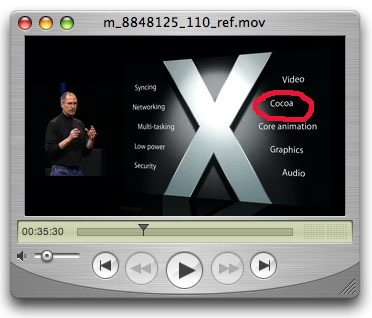
The biggest question for me is will I be able to install Mac OS X applications onto the iPhone? When I watched the Keynote and I saw Cocoa listed among the OS technologies I thought that the iPhone would be a perfect place for FaceSpan-developed applications to be deployed.

Just like Apple’s DashCode, FaceSpan-built applets would be perfect for this kind of device. Just think of all the stuff you could do with AppleScript on a device with the kind of networking and web capabilities the iPhone possesses! I imagined adding iPhone widgets to the FaceSpan palette and extending the FaceSpan scripting interface with iPhone/synching tools.
The sobering part of this of course is that, while the device may have the full Cocoa toolset, it may not be possible to install anything on the device. I’ll just have to wait and see (And, living in Canada, it will take extra time for the iPhone to be available here).
This still leaves me with the pressing problem that I need to replace my broken iPod now.
-
The Year Ahead - 2007
2006 was a busy year. I completed the re-write of Script Debugger 4 in Cocoa, ported it from CodeWarrior to Xcode, and transitioned to Intel Macs. Along the way, there have been 5 maintenance Script Debugger 4 releases. I had hoped to also release FaceSpan 5 in 2006, but that did not work out.
As we begin another year I think its time to layout my plan for the coming year.
Script Debugger 4.0
In 2007 I’ll continue releasing maintenance updates for Script Debugger 4. I have Script Debugger 4.0.6 waiting in the wings which will ship in the next month or so, and when Leopard (Mac OS X 10.5) ships I’m sure I’ll have to tweak the software some more.
FaceSpan 5.0
As some of you may recall, last year I acquired FaceSpan (an AppleScript-based User Interface builder) from Digital Technologies International. I went on to release FaceSpan 4.3 which addressed the most pressing bugs in the product.
In the time since the release of FaceSpan 4.3 I have been working on FaceSpan 5. There have been some setbacks along the way and its taking more time than I planned. However, FaceSpan 5 is progressing and I think the results are going to be worth all the effort.
FaceSpan 5, Script Debugger 5 and Affrus 2 all share the same script editing code. This means that editor improvements in one product (e.g. Regular Expression search and replace) are now quickly shared with the others. Also, FaceSpan 5 and Script Debugger 5 share the same dictionary viewing and AppleScript debugger code. I believe that this will make all the products progress much more quickly in the future. Since I work largely alone, this kind of code sharing is critical to making it possible to maintain so much software.
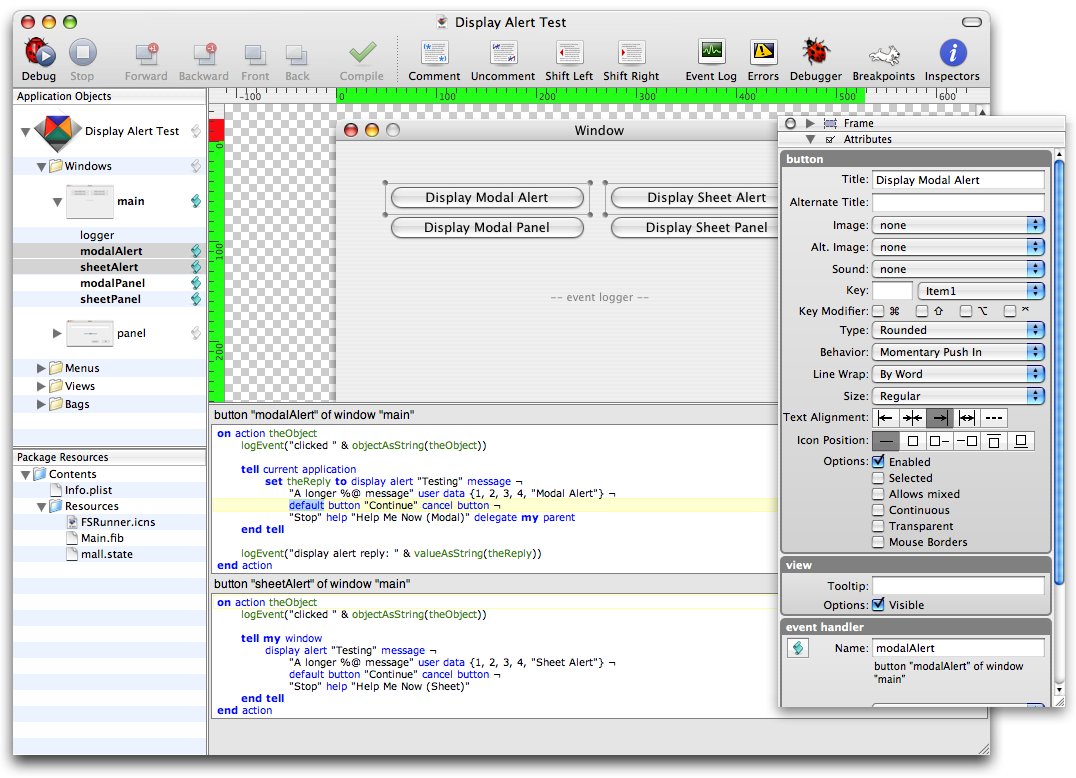
Here’s a teaser showing the new FaceSpan 5.0 project window and some of its inspectors:

The script editing areas you see have all of Script Debugger 4’s editing capabilities (snippets, paste tell, etc.), and when you run a project, you have all of Script Debugger’s debugging capabilities integrated directly into the FaceSpan IDE.
Affrus 2.0
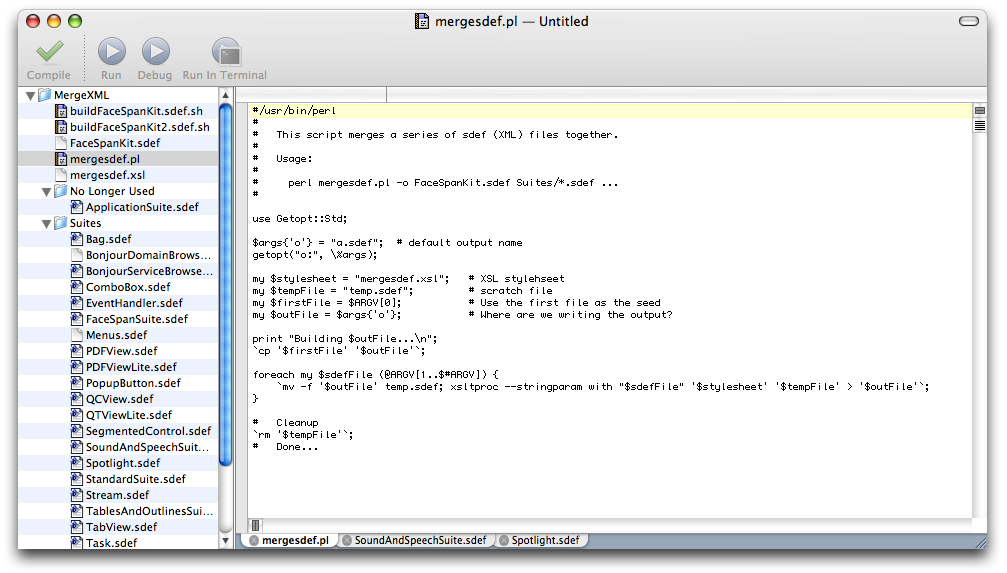
Affrus 2.0 is a re-write of Affrus 1.0 (a Perl editor and Debugger) using Apple’s Cocoa Frameworks. This is similar to the work I undertook to re-write Script Debugger as a Cocoa application.

Here’s a little teaser. This screen shot shows just two Affrus 2 features: projects and tabbed editing. Other key features for Affrus 2 are Ruby and Python debugging.
Script Debugger 4.5
Once FaceSpan 5.0 and Affrus 2.0 have shipped (and all the code has been debugged), I will release Script Debugger 4.5. This update for Script Debugger 4.0 owners will deliver on my promise to provide scripting support and split-pane editing.
Script Debugger 5.0 will have to wait for 2008, but I have big plans. Oh, and JavaScript OSA will get some TLC along the way as well.
So thats the plan for 2007. It should be a great year with lots of new toys for everyone to play with.
subscribe via RSS