-
SigmaSwiftStatistics for Swift Playgrounds
Sigma Playground allows you to use SigmaSwiftStatistics in Swift Playgrounds on the iPad.
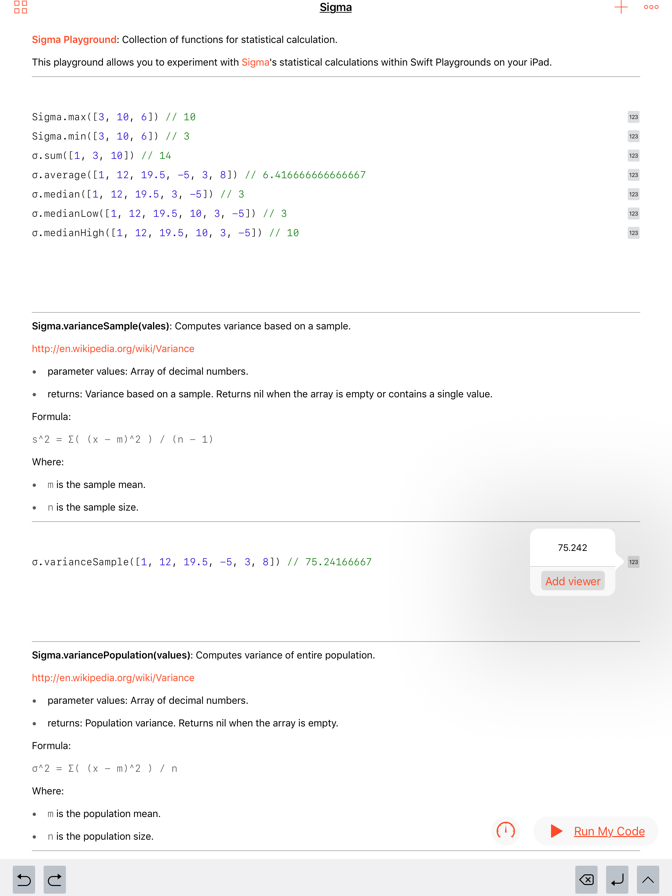
The Sigma Playground can be downloaded here:
This screencast demonstrates how to install the Sigma Playground on your iPad:
The sources for the Sigma Playground are available on GitHub.

-
2016 MacBook Pro's 16GB RAM Limit
A lot has been written about how Apple’s new MacBook Pro maxes out at 16GB of RAM. Some argue that 16GB is enough for almost anyone, and therefore it is not a real problem. I disagree.
Back when I bought my 2012 MacBook Pro Retina, I maxed out its memory and got 16GB RAM. This was a huge extravagance and at the time. It was hard to use more than 8-10GB of RAM. However, as the years passed, the macOS has used more resources and so has Xcode. Now, almost 5 years later, my machine fully utilizes that 16GB of RAM.
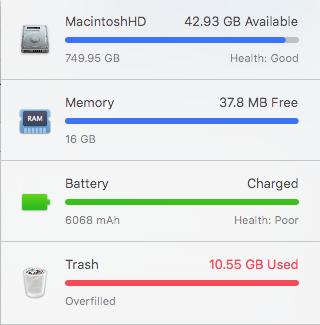
Given what these new machines cost, I expect to be using it for several years. I anticipate that 2-3 years from now, 16GB RAM is going to feel very cramped. At that point, the only option will be a new machine.
I’m torn. My current MacBook Pro Retina is the best Apple laptop I’ve ever owned. I like it a lot. I really want to move to a retina (5K) external monitor except that my current machine’s Thunderbolt 1 ports are unable to do this. The new MacBook Pro solves this problem, but the memory issue gives me pause. I may just have the battery replaced and sit on my hands for another year to see what happens.
-
FancyDroplet
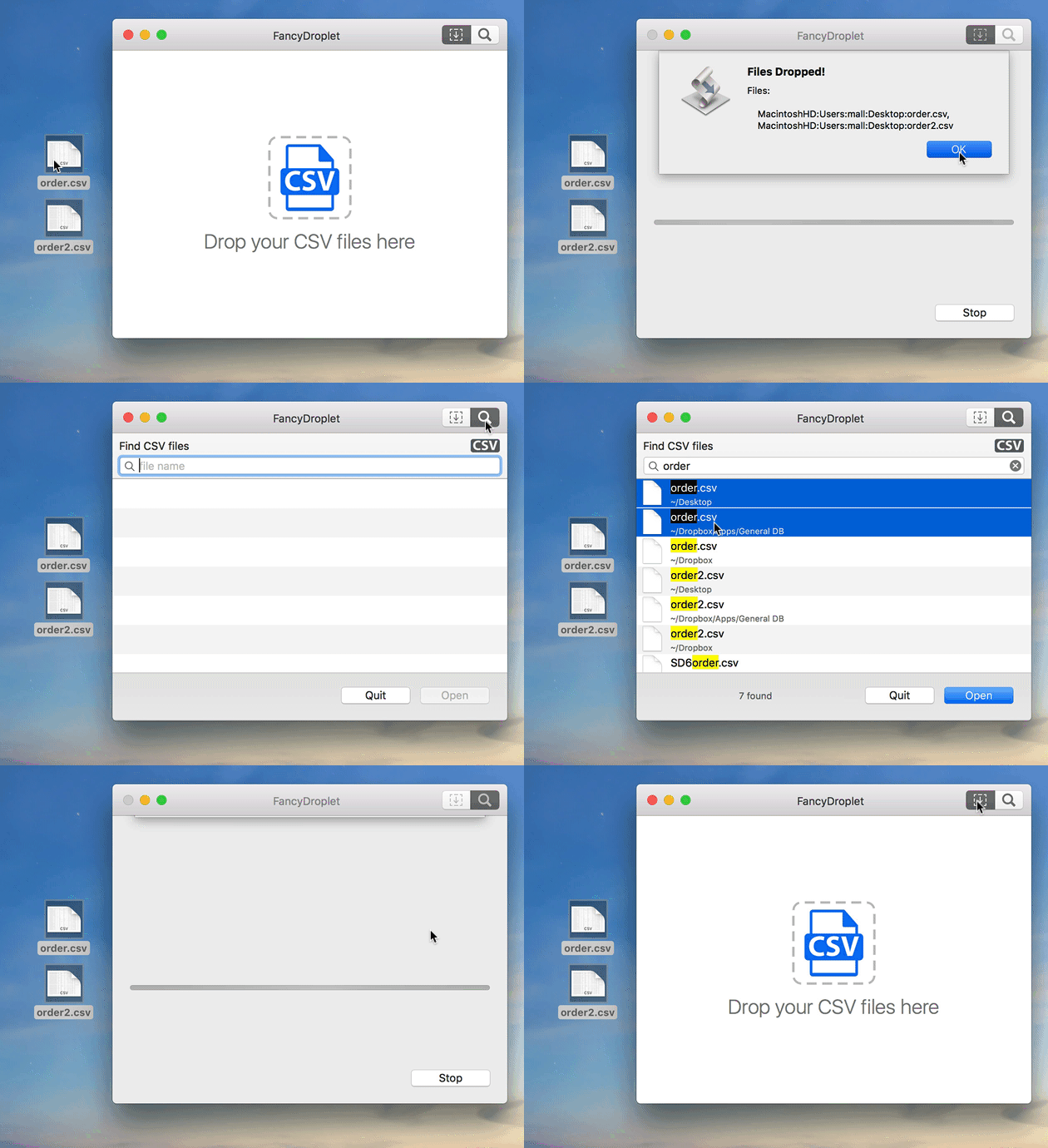
As a side project I am working on an improved AppleScript droplet shell. My goal is to create a better AppleScript droplet experience by providing a better UI for receiving dropped files and offering a way of picking files to process via integrated Spotlight document searching (you’ll recognize this as being based on Script Debugger’s Open Quickly feature). Additionally, I want to give droplet scripts an opportunity to clean up if the user stops or quits the script.
-
Script Debugger 6 Released
I’m pleased to announce the release of Script Debugger 6. This release introduces over 25 new features and embraces modern AppleScript, including AppleScriptObjC. To sweeten the deal, Script Debugger’s price has been reduced by 50%!
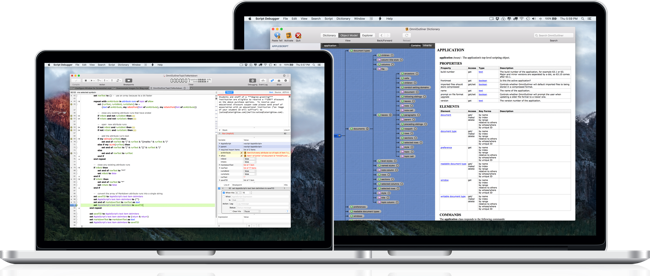
Product Information | Free Trial | Release Notes
For those unfamiliar with Script Debugger, it is an integraded development environment focused on AppleScript. This focus allows us to deliver a suite of tools that makes AppleScript development amazingly productive. Features like the dictionary explorer allow you to look directly into any application’s live scripting interface and step wise debugging with the ability to see the state of all your variables make AppleScript usable in a way you’ve never experienced before. Of course, this is just a taste of the things Script Debugger does.
-
Acorn Is Scriptable!
I oscillate between Acorn and Pixelmator on the Mac - its great to have two competent alternatives to Photoshop. Pixelmator is my current fav on the iPad Pro (there’s nothing like using it’s object removal with the Apple Pencil). However, today Acorn has me on the Mac because it is scriptable. Whipped up this little script to generate images for Script Debugger 6 release notes:
use AppleScript version "2.4" -- Yosemite (10.10) or later
use scripting additions

on downsampleImage(theFile)
	local destFolderHFSPath

	tell application "Finder"
		set destFolderHFSPath to get folder "Web" of desktop as string
	end tell

	tell application "Acorn"
		tell (open theFile)
			local imageName, imageWidth, imageHeight

			set {imageName, imageHeight, imageWidth} to {name, height, width}
			trim

			--	Create 1x down sampled image
			web export width (imageWidth * 0.328) height (imageHeight * 0.328) as PNG in file (destFolderHFSPath & imageName & ".png")
			--	Create 2x down sampled image
			web export width (imageWidth * 0.65) height (imageHeight * 0.65) as PNG in file (destFolderHFSPath & imageName & "@2x.png")

			close saving no
		end tell
	end tell
end downsampleImage

on open theFiles
	repeat with aFile in theFiles
		downsampleImage(contents of aFile)
	end repeat
end open
No fuss, it just worked.
-
Script Debugger 6 Release Notes (6A162)
Here is an updated version of the Script Debugger 6 (build 6A162) release notes. We are very close to completion and this document quite accurately reflects the new features in Script Debugger 6.
DISCLAIMER: Nothing is final until the software ships and there is always the possibility that a feature may have to be removed or altered in the final product.
1. Code Signing
Script Debugger 6 adopts an always-on approach to code signing. Once you enable code signing for a script by selecting a developer ID, Script Debugger signs your script each time you save it. There is no requirement to go through a special Save or Export operation.
2. Improved Bundled Script Resource Editing
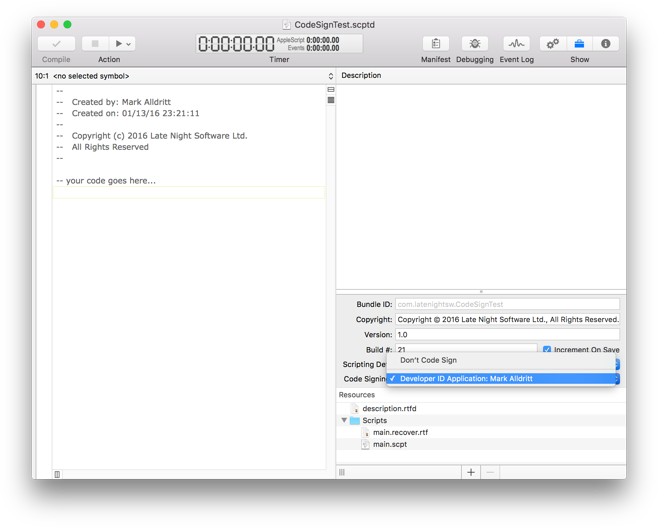
The Script Debugger 6 bundled script resource editor has been expanded. You are now able to edit a bundle ID, copyright string, marketing version string and build number. Script Debugger 6 gives you the option of auto-incrementing build numbers each time a script is saved.
Additionally, you are able to identify a Scripting Definition (SDEF) file from your script’s bundle and to select a developer ID to enable always-on code signing for your script.
You are able to specify a default copyright string which is used when creating new bundled scripts and applications. This default copyright string may contain clipping directives which are expanded at the time a new script document is created.
3. Progress Reporting
AppleScript’s progress reporting properties (introduced in Mac OS X 10.10 Yosemite) are fully supported in Script Debugger 6. When a script begins reporting progress information by setting any of AppleScript’s progress reporting properties Script Debugger 6 responds by adding a progress bar display above the script’s source:
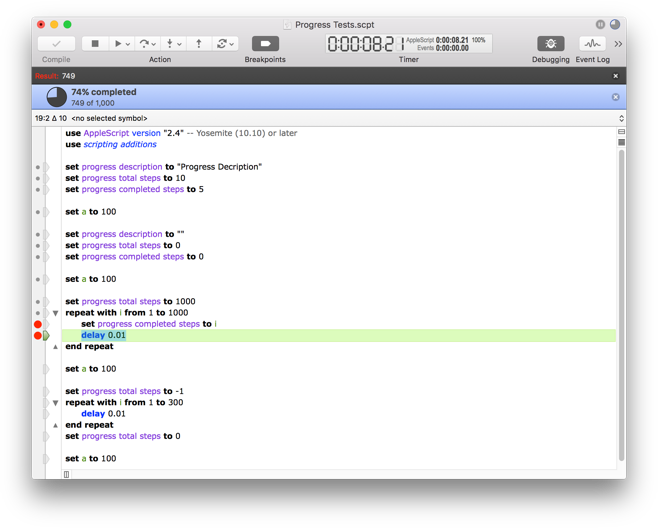
Script Debugger supports both determinate and indeterminate progress reporting.
Note also that progress information is shown in the window title bar and the script’s document tab. You can elect to dismiss the progress display by clicking the ‘x’ button.
4. Open Quickly
The Open Quickly command, which allows you to easily search for and open scripts containing a particular term in the name or the body of the script, has been heavily revised for Script Debugger 6.
4.1 Improved Search Hit Display
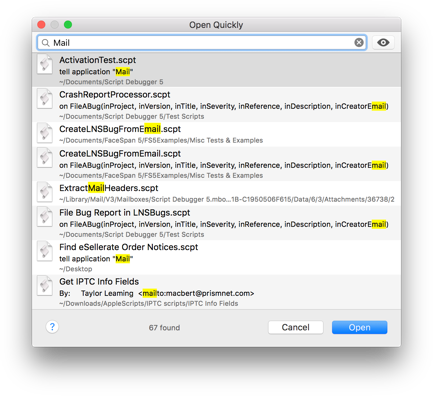
The Open Quickly window highlights the portion of the script’s name, description, Finder comment or script source that matches the search term(s) entered.
4.1 Discontiguous Searching
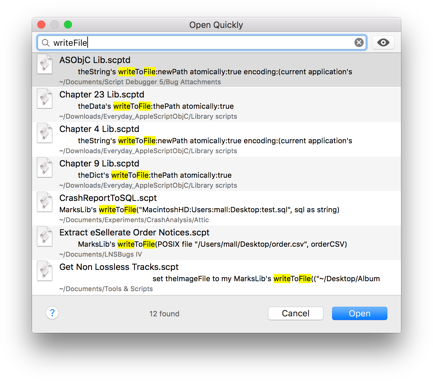
Discontiguous search matches are reported (when a single search term is entered), similar to the way Xcode’s Open Quickly command behaves when looking up identifiers and source file names. When multiple search terms are entered the Open Quickly command looks for each term within the script name, description, finder comment and script source.
For example, if you have a series of scripts containing the same ‘writeToFile’ handler, you can locate these scripts by entering the search terms ‘write’, ‘writeToFile’ or ‘writeFile’.
5. Editor Improvements
5.1 Code Folding
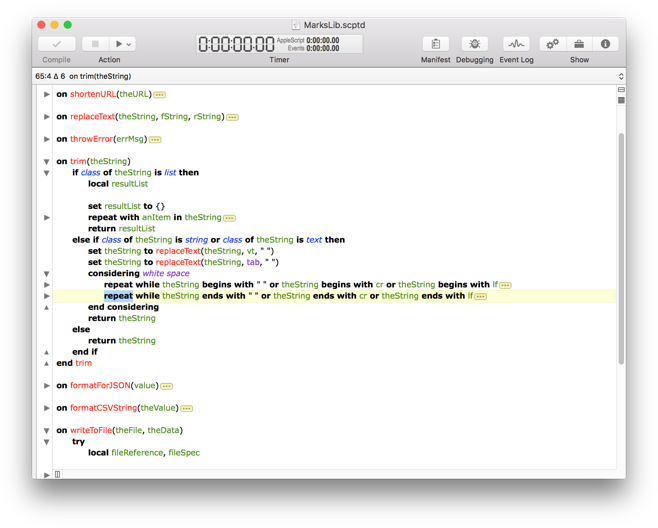
Script Debugger 6 at long last provides code folding where you can collapse block structures and comments within your code to reduce clutter when editing.
5.2 Autocompletion
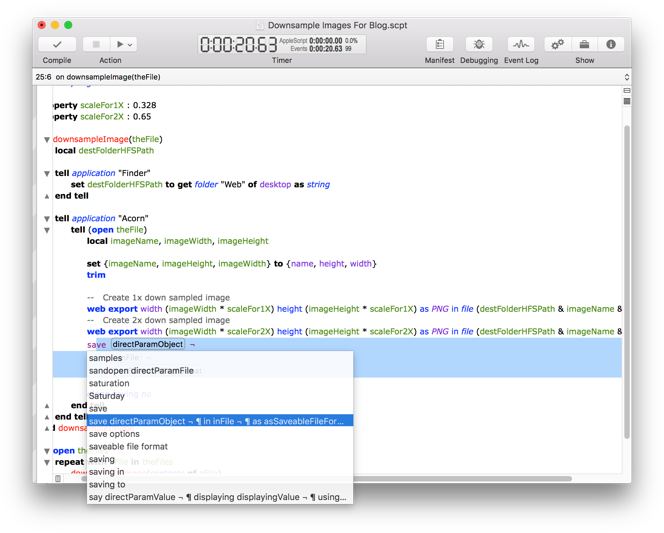
Improved code completion to include all matching user defined identifiers, commands from target applications and AppleScript Objective-C identifiers.
5.3 AppleScript Objective-C Autocompletion
AppleScriptObjC code completion covers the main Cocoa frameworks, and automatically handles insertion of
current application'swhere required. The insertion can be either in-line, or in the form of automatically generated properties, with the ability to refactor between the two forms.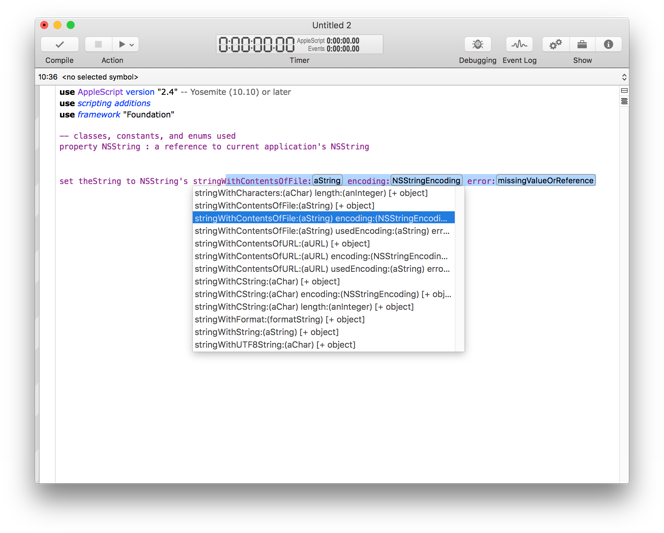
5.4 Automatic “it’s” Correction
If you type “it’s " in code, it will be changed to “its “. This avoids the new “– Grammar Police” comment being inserted by the compiler in 10.11 (El Capitan).
5.5 Terminology Clash Avoidance
When using interleaved syntax for handlers, parameters will be escaped with pipe characters if they clash with defined terminology.
5.6 Identifier Case Changing
Script Debugger 6 performs each script compilation in a new AppleScript compiler instance. This avoids a long standing problem where it was impossible to change the case of a variable, property, handler or script object once the script had been compiled.
5.7 Dash Support
If you have Dash installed, you can turn on support so that option-clicking on a word will look it up in Dash. See … in Preferences.
5.7 Application, Script Library and Framework Picker
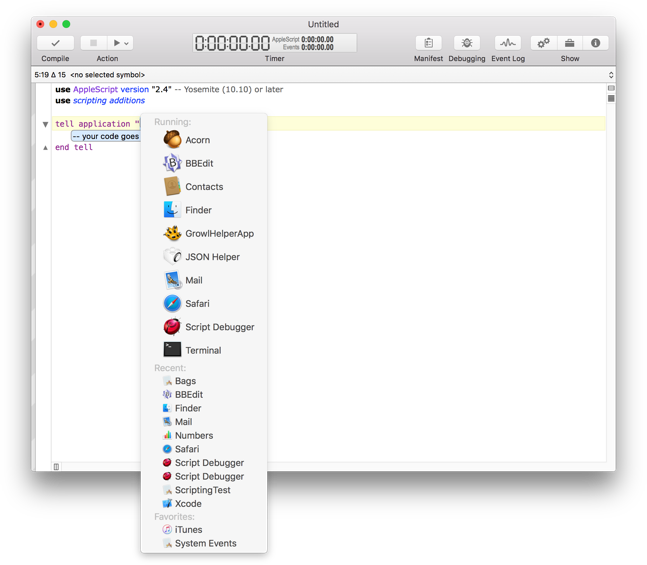
Script Debugger 6 offers new powers for placeholders referring to applications, script libraries and AppleScript Objective-C framework names when existing clippings, text substitutions and command completions. Script Debugger offers a menu of running and favourite applications for application placeholders, a menu of installed script library names for script placeholders and a menu of commonly used framework names for framework placeholders.
6. Debugging Improvements
6.1 Non-Persistent Global Variables
A new Persistent Global Variables command has been added to the Script menu which allows you to determine if the value of global variables and properties persists from one run to the next. Note that when Code Signing is enabled, this setting is forced off to match the behaviour of signed scripts.
6.2 AppleScript Objective-C Value Exploring
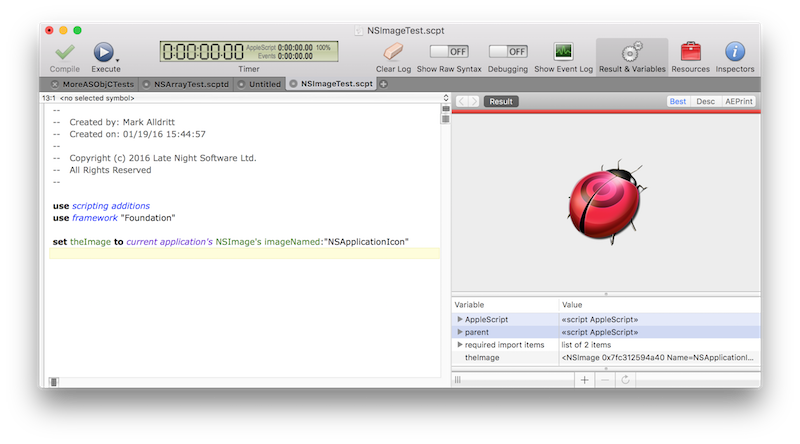
Script Debugger’s various explorers now support AppleScript Objective-C object references. Instead of seeing AppleScript Objective-C object references shown as «class ocid» id «data optr00000000F0FB3885FC7F0000», Script Debugger 6 shows you details of the object:
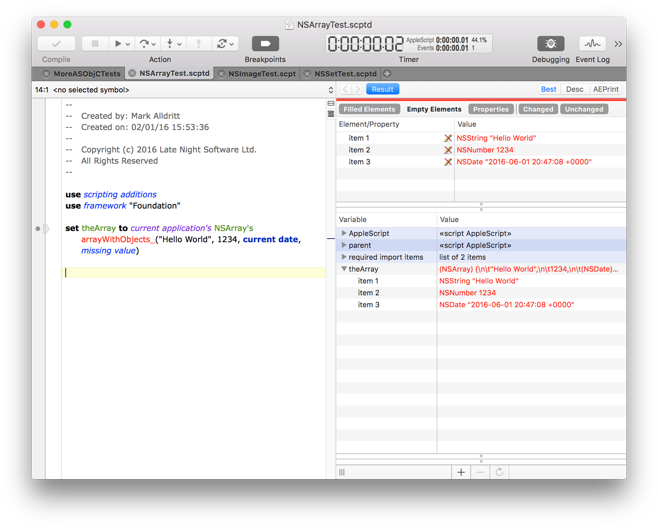
As this screen shot illustrates, you are even able to explore into container objects to examine their contents.
6.3 AppleScript Objective-C Value Viewers
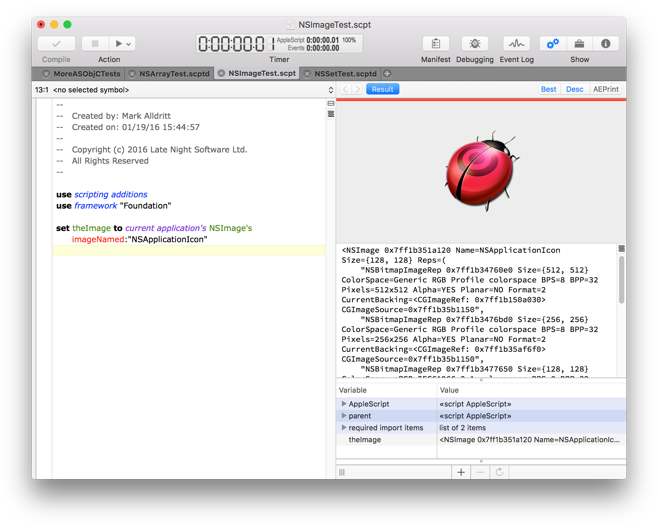
Script Debugger 6’s support for AppleScript Objective-C objects extends to displaying “native” viewers for dates and images.
6.4 Breakpoint Dragging
Breakpoints, which allow you mark specific lines of your script where execution will pause in debugging mode, can now be moved by dragging them within the script’s gutter. Additionally, you can delete a breakpoint by dragging it out of the script’s gutter.
6.5 Popover Breakpoint Editor
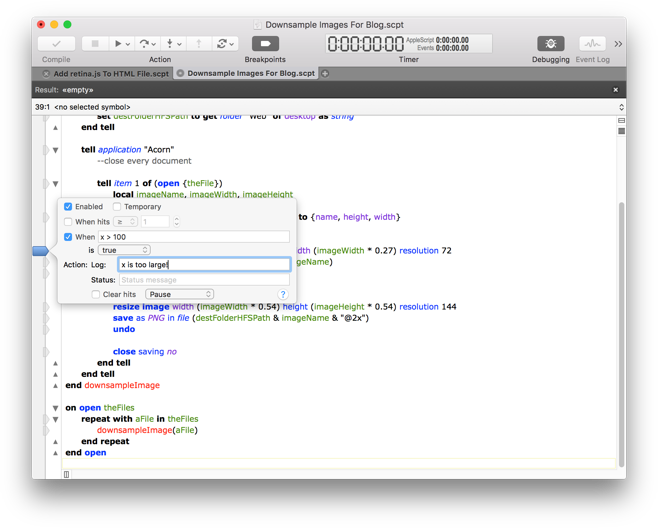
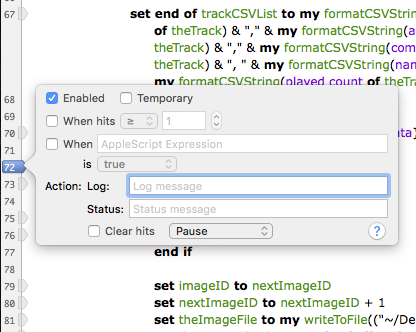
Double-clicking on a breakpoint in the script’s gutter allows you to edit a breakpoint in a popover window. You can also summon this popover window using the breakpoint contextual menu or the Edit Breakpoint command in the Script menu.
6.6 Remove All Breakpoints
The Remove All Breakpoints command now confirms with you before removing all your breakpoints to avoid accidental breakpoint removal.
6.7 Remove All Disabled Breakpoints
A new Remove All Disabled Breakpoints command has been added to remove all disabled breakpoints. Like the Remove All Breakpoints command, this new command confirms with you before removing all your disabled breakpoints to avoid accidental breakpoint removal.
6.8 Improved Current Statement Highlighting
Like Script Debugger 5, Script Debugger 6 moves the current text selection to the current statement as you step through code or pause at breakpoints. However, Script Debugger 6 does not select the current statement’s trailing newline. This avoids some visibility problems which occurred for some users with Script Debugger 5 when their current statement highlight color preference was too similar to the system text selection color.
7. AppleEvent Logging Improvements
7.1 Added Close and Clear Buttons
Added a Clear and a Close button to the Event Log bar within the script window.
8. Dictionary Improvements
8.1 Open Application Dictionary
When the PrefChooseAppsUsingChooser expert preference is true, the dictionary chooser presented by Script Debugger when opening dictionaries lists scripting additions and script libraries just as the Script Editor does.
8.2 Better Application Scriptability Detection
Script Debugger 6 improves the way it determines if an application is scriptable. For example, Apple’s Preview application is not recognized as scriptable.
9. Features Removed
9.1 Mac OS X Version Support
Script Debugger 6 supports Mac OS X 10.10 (Yosemite) or later and Mac OS X 10.11 (El Capitan) is recommended.
9.2 Script Debugger Libraries
Script Debugger 5’s library inclusion mechanism is no longer supported in Script Debugger 6. This means that Script Debugger 5’s Libraries pane has been removed along with the
Flatten Scriptcommand found in the Export submenu of the File menu.Script Debugger 6 provides a conversion service that translates Script Debugger 5 references into AppleScript
use scriptstatments. -
Script Debugger 6 Release Notes (6A121)
I’m posting this in-progress document publicly as a bit of an experiment. Given that it has been several years since the release of Script Debugger 5, I hope that the appearance of this information will give people confidence that Script Debugger 6’s release is imminent.
Beta testing of Script Debugger 6 is on going and I will update this post as changes are made to the application.
DISCLAIMER: Nothing is final until the software ships and there is always the possibility that a feature may have to be removed or altered in the final product.
1. Code Signing
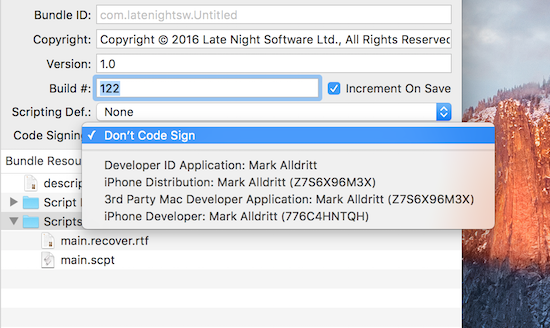
Script Debugger 6 adopts an always-on approach to code signing. Once you enable code signing for a script by selecting a developer ID, Script Debugger signs your script each time you save it. There is no requirement to go through a special Save or Export operation.
2. Improved Bundled Script Resource Editing
The Script Debugger 6 bundled script resource editor has been expanded. You are now able to edit a bundle ID, copyright string, marketing version string and build number. Script Debugger 6 gives you the option of auto-incrementing build numbers each time a script is saved.
Additionally, you are able to identify a Scripting Definition (SDEF) file from your script’s bundle and to select a developer ID to enable always-on code signing for your script.
You are able to specify a default copyright string which is used when creating new bundled scripts and applications. This default copyright string may containing clipping directives where are expanded at the time a new script document is created.
3. Progress Reporting
AppleScript’s progress reporting properties (introduced in Mac OS X 10.10 (Yosemite) are fully supported in Script Debugger 6. When a script begins reporting progress information by setting any of AppleScript’s progress reporting properties Script Debugger 6 responds by adding a progress bar display above the script’s source:
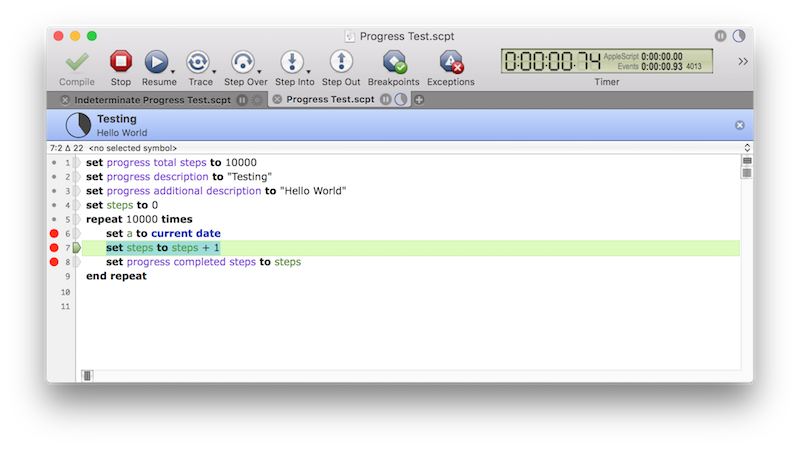
Script Debugger supports both determinate and indeterminate progress reporting.
Note also that progress information is shown in the window title bar and the script’s document tab. You can elect to dismiss the progress display by clicking the ‘x’ button.
4. Open Quickly
The Open Quickly command has been heavily revised for Script Debugger 6.
4.1 Improved Search Hit Display
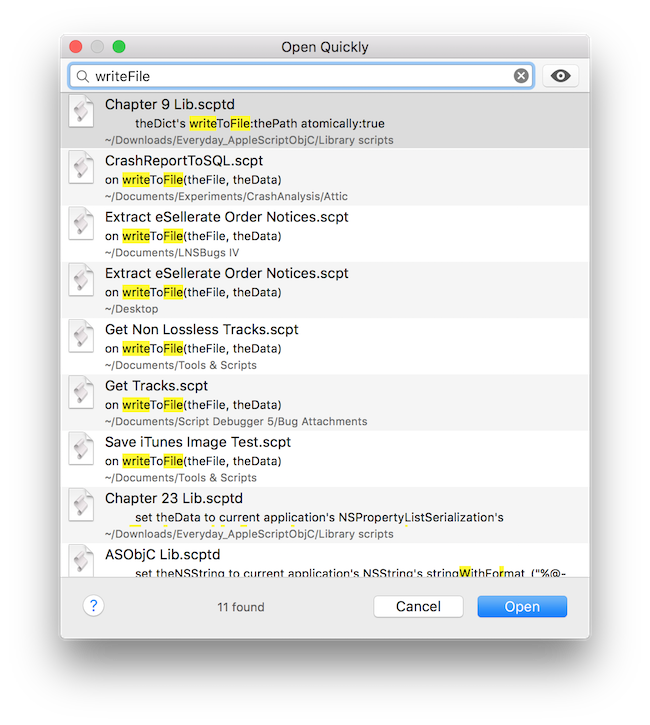
The Open Quickly window highlights the portion of the script’s name, description, Finder comment or script source that matches the search term(s) entered.
4.1 Better Searching
Discontiguous search matches are reported (when a single search term is entered), similar to the way Xcode’s Open Quickly command behaves when looking up identifiers and source file names. When multiple search terms are entered the Open Quickly command looks for each term within the script name, description, finder comment and script source.
For example, if you have a series of scripts containing the same ‘writeToFile’ handler, you can locate these scripts by entering the search terms ‘write’, ‘writeToFile’ or ‘writeFile’.
5. Editor Improvements
5.1 Code Folding
While not yet fully complete, Script Debugger 6 at long last provides code folding where you can collapse block structures and comments within your code to reduce clutter when editing.
5.2 Autocompletion
Improved code completion to include all matching user defined identifiers. Additional improvements to autocompletion are planned to better support AppleScript Objective-C development.
5.3 Identifier Case Changing
Script Debugger 6 performs each script compilation in a new AppleScript compiler instance. This avoids a long standing problem where it was impossible to change the case of a variable, property, handler or script object once the script had been compiled.
5.4 Automatic “it’s” Correction
If you type “it’s " in code, it will be changed to “its “. This avoids the new “– Grammar Police” comment being inserted by the compiler in 10.11 (El Capitan).
5.5 Terminology Class Avoidance
When using interleaved syntax for handlers, parameters will be escaped with pipe characters if they clash with defined terminology.
5.6 Dash Support
If you have Dash installed, you can turn on support so that option-clicking on a word will look it up in Dash. See … in Preferences.
5.7 Application, Script Library and Framework Picker
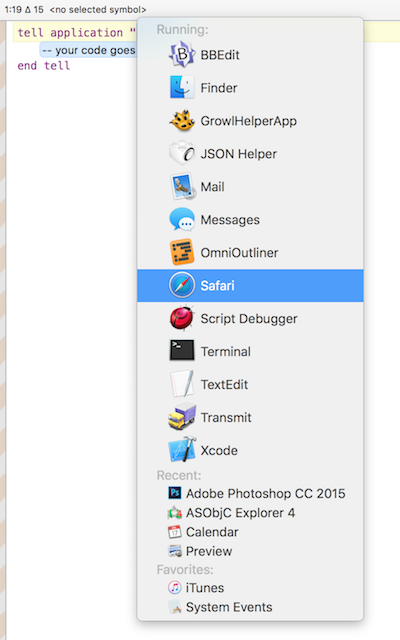
Script Debugger 6 offers new powers for placeholders referring to applications, script libraries and AppleScript Objective-C framework names when existing clippings, text substitutions and command completions. Script Debugger offers a menu of running and favourite applications for application placeholders, a menu of installed script library names for script placeholders and a menu of commonly used framework names for framework placeholders.
5.8 …more coming
6. Debugging Improvements
6.1 Non-Persistent Global Variables
A new Persistent Global Variables command has been added to the Script menu which allows you to determine if the value of global variables and properties persists from one run to the next. Note that when Code Signing is enabled, this setting is forced off to match the behaviour of signed scripts.
6.2 AppleScript Objective-C Value Exploring
Script Debugger’s various explorers now support AppleScript Objective-C object references. Instead of seeing AppleScript Objective-C object references shown as «class ocid» id «data optr00000000F0FB3885FC7F0000», Script Debugger 6 shows you details of the object:
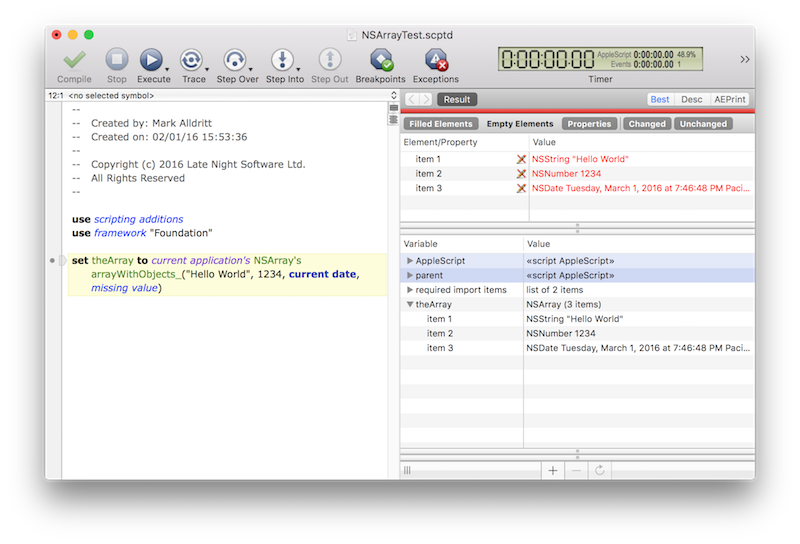
As this screen shot illustrates, you are even able to explore into container objects to examine their contents.
6.3 AppleScript Objective-C Value Viewers
Script Debugger 6’s support for AppleScript Objective-C objects extends to displaying “native” viewers for dates and images.
6.4 Breakpoint Dragging
You can move breakpoints by dragging them within the script’s gutter. Additionally, you can delete a breakpoint by dragging it out of the script’s gutter.
6.5 Popover Breakpoint Editor
Double-clicking on a breakpoint in the script’s gutter allows you to edit a breakpoint in a popover window. You can also summon this popover window using the breakpoint contextual menu or the Edit Breakpoint command in the Script menu.
6.6 Remove All Breakpoints
The Remove All Breakpoints command now confirms with you before removing all your breakpoints to avoid accidental breakpoint removal.
6.7 Remove All Disabled Breakpoints
A new Remove All Disabled Breakpoints command has been added to remove all disabled breakpoints. Like the Remove All Breakpoints command, this new command confirms with you before removing all your disabled breakpoints to avoid accidental breakpoint removal.
6.8 Improved Current Statement Highlighting
Like Script Debugger 5, Script Debugger 6 moves the current text selection to the current statement as you step through code or pause at breakpoints. However, Script Debugger 6 does not select the current statement’s trailing newline. This avoids some visibility problems which occurred for some users with Script Debugger 5 when their current statement highlight color preference was too similar to the system text selection color.
7. AppleEvent Logging Improvements
7.1 Added Close and Clear Buttons
Added a Clear and a Close button to the Event Log bar within the script window.
8. Dictionary Improvements
8.1 Open Application Dictionary
When the PrefChooseAppsUsingChooser expert preference is true, the dictionary chooser presented by Script Debugger when opening dictionaries lists scripting additions and script libraries just as the Script Editor does.
8.2 Better Application Scriptability Detection
Script Debugger 6 improves the way it determines if an application is scriptable. For example, Apple’s Preview application is not recognized as scriptable.
-
Chromecast Followup
A follow up to my Powering Chromecast post
After a bit of a rough start I have to report that the Chromecast is getting a lot of use. My daughter uses it almost daily to play vlogs and other content from YouTube, and the other social media she follows. Its less useful for me, but I watch the odd TED talk and YouTube video on it. I also play WWDC talks on it while working on other things.
A feature which at first gave us trouble turns out to be really nice. When you begin playing content through the Chromecast, it forces the TV (a SONY LCD in my case) to switch input to the Chromecast saving a trip to the controls on the back of the TV. If only the Telus cable box would do the same thing.
-
iPad Pro & Apple Pencil for the non-artist
I have to say that I’m really liking the iPad Pro. Apart from times when I have to code and when I need Lightroom (Lightroom on the iPad is useless for the work I want to do), it is the machine I take with me in my backpack.
I like to make rough sketches of software UI ideas as I work. I’ve tried several styli over the years and never been totally happy. I have been using a 53 Pencil which I liked quite a lot, but then I got an Apple Pencil. Its clearly nicer and the closest yet to drawing in my paper journal. I’m no artist at all, but these tools let me quickly capture what I’m imagining as I work. As I get older, I find that getting ideas out of my head and capturing them in some form becomes more and more critical to my work process.
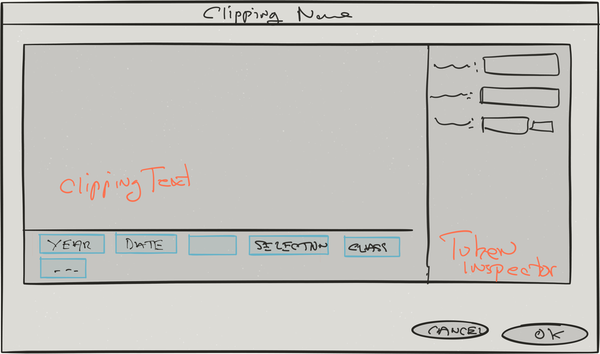
Drawing with the Apple Pencil is faster and more responsive, and while its not in evidence in this example, pressure sensitivity helps. However, I do miss the eraser on the 53 Pencil a lot.
I used to make these sketches in my paper journal (which I still carry with me) but being able to make a quick sketch like this and attach it to an item in my bug database is better.
Tools used:
-
Inspirational Software
I’ve been building software since grade 9 in high school (~40 years), and I find it hard sometimes to get excited about new possibilities in software development. But some days I see something done so well that it makes me want to drop everything and start a new project that tries to match it.
The last time this happened to me was when a video of StaffPad for the Microsoft Surface was circulating. My musical skills are limited to beginning piano but this thing immediately left me wanting to try it and, for once, wishing I had a Microsoft Surface machine.
Today, Apple did it to me. The release of Music Memos and the new GarageBand are, to me, examples of Apple at is very best. Apple’s OS releases have been problematic of late, but these apps are wonderful. I happen to have an iPad Pro and I just wasted a whole morning playing with the new GarageBand.
GarageBand on the iPad Pro confirms for me my belief that the iPad Pro hardware is spot on. It just needs good software to make it really compelling. Not stripped down mobile versions of apps, but fully featured, inventively designed apps that take full advantage of the nature of a large touch screen device.
-
RegEx Knife 2.0 Beta Testers Needed
I am wrapping up development of the next version of my RegEx Knife Regular Expression development tool for iOS. The big news for this release is that the UI has changed (no more three-pane split views) and iPhones are finally supported in addition to iPads (the iPad Pro in particular).
If you are interested in helping me test RegEx Knife 2.0, email me and I’ll add you to the beta list. I’ll be using Apple’s TestFlight so you’ll need to have that app installed on your iOS device.
subscribe via RSS