-
Snow Leopard vs My Scripting Additions, Part 3
In a previous post I released beta builds of Snow Leopard versions of 3 out of 4 of my AppleScript Scripting Additions.
The remaining Scripting Addition, XSLT Tools, has proved to be a difficult problem to solve. XSLT Tools makes heavy use of Carbon APIs that are not available to 64-bit builds on Snow Leopard. However, even the existing 32-bit version crashes on Snow Leopard systems.
Here is a new 32-bit Snow Leopard/Intel only build of XSLT Tools that no longer crashes:
In order to use this version of XSLT Tools, you need to run the AppleScript Script Editor, applets and droplets in 32-bit mode. This is done by modifying these files using the Finder’s Get Info panel and then checking the 32-bit mode checkbox.
-
Script Debugger 4.5.4b4
I am preparing another Script Debugger 4.5 maintenance release. This maintenance release addresses Snow Leopard (Mac OS X 10.6) compatibility and some remaining stability issues in Script Debugger 4.5.3. Here is another BETA build of Script Debugger 4.5.4 for testing.
UPDATE: Script Debugger 4.5.4 has been released.
##Requirements
- A Script Debugger 4.5 registration number
- PowerPC or Intel Macintosh
- Mac OS X 10.4, 10.5, 10.6
##Download
Script Debugger 4.5.4b4 (11.4MB)
##Installation
- Expand the SD4.5.4 archive
- Quit Script Debugger if it is running
- Move the Script Debugger 4.5 application to your Applications folder (or any other place on your disk)
I recommend keeping your copy of Script Debugger 4.5.3 around in case you need to revert to that build. Note also that this BETA build expires on February 1, 2010.
##Script Debugger 4.5.4b4 Changes
- 14870 Corrected a problem that caused the insertion point to be in wrong place when dragging items to the last line of a script.
- 14869 Corrected a series of parsing bugs that sometimes caused parts of scripts to be omitted from the Table Of Contents menu.
-
Snow Leopard vs My Scripting Additions, Part 2
UPDATE: Final versions of these Scripting Additions have been released.
In a previous post I described how my Scripting Additions were incompatible with Snow Leopard (Mac OS X 10.6).
I am developing new versions of XML Tools, Property List Tools and List & record Tools which are 64-bit native and take full advantage of the new capabilities of Snow Leopard (multi-threading). The problem is that my Intel hardware is 32-bit Core Duo based (Original MacBook Pro) so I cannot fully test the 64-bit part. If you have scripts that use these scripting additions on 64-bit Intel hardware running Snow Leopard, please download and test these beta builds and report any problems:
IMPORTANT NOTE: Due to bugs in Mac OS X 10.5 (Leopard), it is not possible to make a Scripting Addition that takes full advantage of Mac OS X 10.6 (Snow Leopard) and also be backward compatible with Mac OS X 10.5. As a result, these builds are Intel only, and should only be used with Mac OS X 10.6.
For those who use my XSLT Tools scripting addition, I’m finding that the underlying XML and XSLT libraries make heavy use of Carbon APIs that are not available on 64-Bit Mac OS X 10.6. As a result, I’m still not sure if I’ll be able to create an upgraded version of this Scripting Addition.
-
Script Debugger 4.5.4b3
I am preparing another Script Debugger 4.5 maintenance release. This maintenance release addresses Snow Leopard (Mac OS X 10.6) compatibility and some remaining stability issues in Script Debugger 4.5.3. Here is another BETA build of Script Debugger 4.5.4 for testing.
UPDATE: Script Debugger 4.5.4b4 has been released.
##Requirements
- A Script Debugger 4.5 registration number
- PowerPC or Intel Macintosh
- Mac OS X 10.4, 10.5, 10.6
##Download
Script Debugger 4.5.4b3 (11.4MB)
##Installation
- Expand the SD4.5.4 archive
- Quit Script Debugger if it is running
- Move the Script Debugger 4.5 application to your Applications folder (or any other place on your disk)
I recommend keeping your copy of Script Debugger 4.5.3 around in case you need to revert to that build. Note also that this BETA build expires on December 1, 2009.
##Script Debugger 4.5.4b3 Changes
- 14848 Corrected a crashing bug that occurred when code completion was used with JavaScript OSA.
- 14866 Corrected a crashing bug that occurred when using Find Next/Previous Handler commands in scripts with inconsistent line endings.
- 14864 Corrected a parsing error that prevented the compilation of code that uses statements like ‘tell (… to …)’ when debugging is enabled.
- 14863 Script Debugger now offers to install its self in /Applications after it has been run directly from the installation disk image.
-
Snow Leopard vs My Scripting Additions
My various Scripting Additions (XML Tools, XSLT Tools, Property List Tools and List & record Tools) are compiled for 32-bit Intel and PowerPC machines. With the advent of Snow Leopard, AppleScript Script Editor, applets and droplets run as 64-bit processes which causes my Scripting Additions to fail to load on 64-bit hardware.
In order to continue using my Scripting Additions, you need to run the AppleScript Script Editor, applets and droplets in 32-bit mode. This is done by using the Finder’s Get Info panel and then checking the 32-bit Model checkbox.
My scripting additions make heavy use of Carbon which is 32-bit only, so making 64-bit versions may be difficult. I don’t want to say I’ll never make 64-bit versions, but at this stage its not clear to me how to move forward.
UPDATE: This problem and solution also applies to JavaScript OSA.
-
What is bad User Interface design?

-
Script Debugger 4.5.4b2
I am preparing another Script Debugger 4.5 maintenance release. This maintenance release addresses Snow Leopard (Mac OS X 10.6) compatibility and some remaining stability issues in Script Debugger 4.5.3. Here is another BETA build of Script Debugger 4.5.4 for testing.
UPDATE: Script Debugger 4.5.4b3 has been released.
##Requirements
- A Script Debugger 4.5 registration number
- PowerPC or Intel Macintosh
- Mac OS X 10.4, 10.5, 10.6
##Download
Script Debugger 4.5.4b2 (11.4MB)
##Installation
- Expand the SD4.5.4 archive
- Quit Script Debugger if it is running
- Move the Script Debugger 4.5 application to your Applicatioons folder (or any other place on your disk)
I recommend keeping your copy of Script Debugger 4.5.3 around in case you need to revert to that build. Note also that this BETA build expires on November 1, 2009.
##Script Debugger 4.5.4b2 Changes
- 14840 Corrected a parsing error where # characters appearing within a block comment would cause the parser to fail to parse the remainder of the script in some instances.
- 14844 The Manifest command once again correctly shows the events generated by a script.
- 14852 Pressing the Tab key in the dictionary Search Results panel now moves keyboard focus to the description area of the window.
- 14839 Corrected a terminology conflict that prevented the creation of ‘file’ objects on 10.4 systems. Scripts that use the file property of Script Debugger’s document object must be updated to use the ‘file spec’ property.
- 14830 Changed the ‘source’ constant to ‘source code’ and changed the ‘raw’ constant to ‘raw code’ to avoid terminology conflicts with scripts that used these terms as variable names.
- 14858 The Fonts & Colors preferences panel now offers to let you set Snow Leopard’s new AppleScript formatting options. A crashing bug that occurred if you double-click in the blank area below the last formatting option has been resolved.
- 14855 Corrected a problem where getting the value of the ‘scripts menu folder’, ‘clippings menu folder’ or ‘script libraries folder’ properties of Script Debugger’s application object would fail intermittently.
- 14850 Dragging text from a script window to another application now includes style information.
- 14824 The Mail dictionary now shows ‘unicode text’ instead of ‘utf8’ for properties returning a unicode text value.
- 14860 Bundled compiled scripts exported as Run-Only bundled applications no longer includes Recover/QuickLook data that could reveal the source code for your script.
-
Script Debugger 4.5.4b1
I am preparing another Script Debugger 4.5 maintenance release. This maintenance release addresses Snow Leopard (Mac OS X 10.6) compatibility the and some remaining stability issues in Script Debugger 4.5.3. Here is another BETA build of Script Debugger 4.5.4 for testing.
UPDATE: Script Debugger 4.5.4b2 has been released.
##Requirements
- A Script Debugger 4.5 registration number
- PowerPC or Intel Macintosh
- Mac OS X 10.4 or 10.5
##Download
Script Debugger 4.5.4b1 (10.8MB)
##Installation
- Expand the SD4.5.4 archive
- Quit Script Debugger if it is running
- Move the Script Debugger 4.5 application to your Applicatioons folder (or any other place on your disk)
I recommend keeping your copy of Script Debugger 4.5.3 around in case you need to revert to that build. Note also that this BETA build expires on November 1, 2009.
##Script Debugger 4.5.4b1 Changes
- 14836 Snow Leopard: global variables are once again correctly displayed in the Variables browser on Mac OS X 10.6.x systems.
- 14806 Tiger: the AppleScript Formatting preferences panel no longer fails to load on Mac OS X 10.4.x systems.
- 14846 Resolved a crash that occurred after the AppleScript Formatting preferences panel has been used.
- 14829 Added a new Edit License… command to the Script Debugger menu. This command allows you to enter new software registration information if you should need to re-license Script Debugger.
- 14828 When Script Debugger detects that too many copies of Script Debugger are using the same license it now names the machines that are using Script Debugger to help identify the cause of the problem.
-
Viewing Local Variables in Script Debugger
The issue of how to view local variables (variables declared within an AppleScript handler) in Script Debugger keeps coming up. This problem has been an issue ever since Script Debugger 2.0 when local variable display was introduced. This issue surfaced again recently on the AppleScript-Users mailing list:
Hello, how can I see the value of y in the variables pane of Script Debugger when I run this simple example script in debug mode:

set x to 3

beeping(x)

on beeping(x)
	--local y
	set y to 5
	beep x
	delay 2
	beep y
end beeping

Bert.
Script Debugger requires all local variables be explicitly declared before they are displayed in the variables browser. AppleScript allows you to explicitly declare locals in several ways:
- explicitly using the ‘local’ statement
- as the loop variable in a ‘repeat with’ statement
- as a parameter to a handler
- as a parameter to an ‘on error’ statement
The problem arrises when a variable is declared implicitly through an assignment within a handler. In this instance, Script Debugger’s parser is not able to detect the new variable (y), and thus fails to display it in the variables browser.
The solution is the uncomment the ‘local y’ statement.
You can find additional information in the Script Debugger Help Book by searching for ‘local’ from the Help menu.
The AppleScript runtime does not provide public debugging hooks. As a result, Script Debugger must resort to a series of hacks to implement step-wise debugging and variable display. One of the limitations of this approach to AppleScript debugging is that Script Debugger must detect the names of all local variables at compile-time. AppleScript’s support for multi-word identifiers in dictionaries makes parsing AppleScript source a very problematic thing to do, and makes detecting local variables without knowing AppleScript’s internal state impossible.
-
Script Debugger 4.5.3 On-Line Help as PDF
Recently I have received several requests for Script Debugger 4.5’s On-Line help as a single PDF file. Matt Neuburg, who writes the Script Debugger 4 documentation, was able to oblige with a nicely hyperlinked PDF file.
Script Debugger 4.5.3 Help Book (PDF, 3.9MB)
-
My iPod Touch needs an FM radio
I really like my iPod touch. Its been so much nicer to use than my old hard disk based iPod that died more times than I care to remember. I never would have thought that video would matter to me on an iPod but it does. Email, Calendar and Contacts are huge for me. Web Surfing is nice too. And there are some 3rd party applications that I often use. But something important is missing: Radio.
I listen to CBC Radio (NPR’s rough equivalent here in Canada), and NPR stations coming across the border from Washington state when I’m at home or in the car. I want to be able to enjoy this material when I’m away from my home or car.
I’ve tried to live with the Podcasts that CBC and NPR produce and they go some distance to solving the problem, but in the end they are unsatisfying. I want to listen to what’s on these radio stations now.
I’m sure Apple’s marketing folks have made the calculation that things like compasses and better Exchange support are going to sell more units and they may be right. But so far nothing has tempted me to upgrade my 1st generation 32GB iPod touch. An FM receiver built into a iPod would make me look at dropping more money on a new iPod.
And before someone suggests a hardware add-on, I only want to carry on object in my backpack. And internet radio does not do it as I’m not near free WiFi often enough to make that work.
-
Script Debugger 4.5.3
I’m pleased to announce the release of Script Debugger 4.5.3. Script Debugger 4.5.3 is a free maintenance release that addresses a series of issues that came to light following the release of Script Debugger 4.5.
-
XML Tools 2.9.3
I have just uploaded a new version of my freeware XML Tools AppleScript Scripting Addition.
Changes in this release:
- The generate XML command now properly escapes " characters appearing within attribute values.
-
Script Debugger 4.5.3b7
I am preparing another Script Debugger 4.5 maintenance release. This maintenance release tries to address the remaining stability issues in the Script Debugger 4.5.2 build. Here is another Beta build of Script Debugger 4.5.3 for testing.
##Requirements
- A Script Debugger 4.5 registration number
- PowerPC or Intel Macintosh
- Mac OS X 10.4 or 10.5
##Download
Script Debugger 4.5.3b7 (10.8MB)
##Installation
- Expand the SD4.5.3 archive
- Quit Script Debugger if it is running
- Move the Script Debugger 4.5 application to your Applicatioons folder (or any other place on your disk)
I recommend keeping your copy of Script Debugger 4.5.2 around in case you need to revert to that build. Note also that this Beta build expires on July 1, 2009.
##Script Debugger 4.5.3b7 Changes
- 14821 Corrected a hanging bug that occurred when a script running in a Script Debugger window told Script Debugger to quit.
- 14806 Integrated Help Book updates.
-
AppleScript Profiling
An Script Debugger feature that I’ve been pondering for a long time is a profiler. Given that Script Debugger’s debugger has the ability to track each statement executed, I can capture quite a bit of data about time spent in handlers, and even particular statements. I can also track AppleEvents back to the statement that initiated them.
A little bit of this information is presented in the existing Script Debugger interface. Firstly, the script timer (bottom of result drawer) displays the number of AppleEvents sent and breaks execution time down into time spent executing in AppleScript and time spent waiting for AppleEvents. The AppleEvent Log window’s contextual menu lets you go to the source statement that generated a particular AppleEvent.
My experience is that most AppleScript performance issues can be traced to inefficient sending of AppleEvents to other applications. As a result, my curiosity is in the tracking of events sent to other applications. But my usage patterns tend to avoid implementing anything but the most trivial algorithms in AppleScript due to its poor string handling and list performance. I also tend to avoid the use of script objects because of they are quite buggy in my experience.
Given all this, what are the questions you need an AppleScript Profiler to answer? Feel free to add a comment to this post or email me directly with your thoughts.
-
Script Debugger 4.5.3b6
I am preparing another Script Debugger 4.5 maintenance release. This maintenance release tries to address the remaining stability issues in the Script Debugger 4.5.2 build.
##Requirements
- A Script Debugger 4.5 registration number
- PowerPC or Intel Macintosh
- Mac OS X 10.4 or 10.5
##Download
Script Debugger 4.5.3b6 (10.8MB)
##Installation
- Expand the SD4.5.3 archive
- Quit Script Debugger if it is running
- Move the Script Debugger 4.5 application to your Applicatioons folder (or any other place on your disk)
I recommend keeping your copy of Script Debugger 4.5.2 around in case you need to revert to that build. Note also that this Beta build expires on June 1, 2009.
##Script Debugger 4.5.3b6 Changes
- 14540 The ‘file spec’ document property has been renamed ‘file’. This change corrects a terminology conflict that caused AppleScript to rewrite ‘file spec’ as ‘file’ following a compile.
- 14816 Addressed a problem where references to ‘path’ outside a tell block generated incorrect 4-character codes (as compared to Apple’s Script Editor).
- 14820 Corrected a block auto-close/balance bug that happens with unbalanced )}] characters appear in a – style comment
- 14819 The ‘stic’ enumeration associated with the ‘display dialog’ command is once again displayed correctly.
- 14817 A hanging bug when exploring the InDesign dictionary is (I hope) resolved.
##Script Debugger 4.5.3b5 Changes
- 14809 When pasting Object Reference as nested tell blocks, the code respects the existing tell context.
- 14811 Corrected a problem in the Tell Context inspector that caused the inspector to stop displaying the current tell context after inspecting the ‘disk’ property of any Finder element.
- 14812 Addressed a crashing problem when getting ‘properties of document 1 of application “Adobe InDesign”’.
- 14814 Added a ‘Paste Object References as nested Tell blocks’ preference to the Editor preferences panel.
- 14813 Holding down the Option key while pasting Object References inverts the ‘Paste Object References as nested Tell blocks’ preference setting.
##Script Debugger 4.5.3b4 Changes
- 14799 Two changes: Shift-Command-C copes an explorer value (available from the Edit and Contextual menus), and pasting an object reference into a script now results in a series of nested tell blocks rather than a single object reference string.
- 14768 Resolved a balance problem that caused block auto-closing to fail if AppleScript block statements (if, repeat) appear within a block comment.
- 14805 The Script Debugger dictionary viewer now correctly displays property/parameter/result types when a type is defined as both singular and plural in the SDEF XML.
- 14807 Unicode characters appearing in AppleScript error messages are now displayed correctly in Script Debugger’s Script Error panel.
- 14790 Resolved several bugs that occurred when using fonts that don’t map into the legacy QuickDraw font model.
##Script Debugger 4.5.3b3 Changes
- 14717 Adjusted dictionary search results so that partial hits matching the start of a name are weighted higher than partial hits in the middle or end of a name.
- 14775 Addressed a crash that could sometimes occur when closing documents.
##Script Debugger 4.5.3b2 Changes
- 14776 Addressed a crash that occurred when expanding a browser item for which there is an open viewer window.
- 14774 Addressed a crash that occurred when canceling the Set Keystroke dialog using the Escape key.
- 14775 Addressed a hanging bug that occur when Script Debugger was stressed heavily during the running/stepping of scripts. This fix also addresses a memory leak that occurred stepping through a script under scripting control.
- 14611 A long standing intermittent crashing bug that occurred creating new documents has finally been resolved.
- 14721 Issuing a Cut, Copy, Paste, or Delete command in the Dictionary Search results pane no longer causes a hang.
- 14773 The scripting interface now correctly reports a script is not debuggable when you try and step into/over/into a script which does not have debugging enabled.
- 14705 Tooltip evaluation tooltips are now properly removed when dictionary windows are opened using the Command-D shortcut.
- 14702 Uncommenting lines without a comment no longer causes leading whitespace to be stripped.
- 14770 Removing the Step Over, Step Into, and Step Out toolbar buttons no longer renders the corresponding menus inoperable.
- 14713 The ‘scripts folder’ and ‘clippings folder’ properties in the scripting interface have been renamed ‘scripts menu folder’ and ‘clippings menu folder’ to avoid a terminology conflict with the ‘scripts folder’ constant defined in by Standard Additions.osax.
- 14772 Option- modifier problems when using Norwegian keyboard layouts have been corrected.
- 14709 Option- modifier problems when using German keyboard layouts have been corrected.
- 14771 Write-only properties are no longer displayed in the Dictionary Explorer.
- 14755 Leopard-style selection highlighting is used when showing balancing brackets and braces while typing.
- 14749 Hiding/Showing the Dock when the dock is positioned on the right of the screen no longer causes inspector windows to move.
- 14724 Auto-paring problems relating to typing ‘(’ before ‘“N” & aVar’ have been resolved.
- 14720 Addressed an issue in the Scripts and Clippings inspectors that could case the Hide/Show Icon state to become confused.
##Script Debugger 4.5.3b1 Changes
- 14708 A slight performance improvement when opening scripts with the ‘Warn when applications may be launched’ setting turned on. Script Debugger no longer loads the dictionaries of all installed Scripting Additions as it did before.
- 14707 New Fatten preference has been added. I have added a hidden preference ‘PrefFlattenAtBeginning’ that controls where libraries are placed when flattening scripts. By default, libraries are placed before the main script. Setting this preference to ‘no’ with the Unix ‘defaults’ command causes libraries to be placed after the main script. No UI is planned for this preference setting.
- 14706 Script Debugger now allows you to continue when it detects that there are duplicate symbols coming from libraries. The ability to continue was present in Script Debugger 3.0 and was somehow lost in the transition to 4.0.
##Bug Reporting
You can email all bug reports to me. Wherever possible, please include the sample documents and the steps needed to reproduce the problem you are experiencing. Also, please include processor (PPC/Intel) and Mac OS version information (10.4 or 10.5). Please don’t assume that others are reporting the bugs you are experiencing - I would prefer to get duplicate bug reports than to miss something. Here is a template for a bug report:
- SUMMARY Recap the problem title and/or include more descriptive summary information.
- STEPS TO REPRODUCE
- Setup or prep work
- Include explicit and accurate steps to reproduce. Do not include extraneous or irrelevant steps.
- RESULTS Describe your results and how they differed from what you expected.
- REGRESSION Provide information on steps taken to isolate the problem. Describe circumstances where the problem occurs or does not occur, such as software versions and/or hardware configurations.
- NOTES Document any additional information that might be useful in resolving the problem, such as references to related problems, leads on diagnosis, screen shots, included attachments, and any workarounds.
-
XML Tools 2.9.2
I have just uploaded a new version of my freeware XML Tools AppleScript Scripting Addition. This new release addresses a regression in the 2.9.1 release that prevented XML Tools from loading correctly on Mac OS X 10.4 (Tiger) systems.
-
XML Tools 2.9.1
I have just uploaded a new version of my freeware XML Tools AppleScript Scripting Addition. This new release addresses a series of issues that have come to light since the 2.9 release in June, 2007.
Changes in this release:
- Resolved a crashing bug that occurred when parsing XML data containing XML namespace declarations on elements other than the root element.
- AppleScript errors signaled from the
XMLParseResultSAX event handler are now reported to the script invoking theparse XMLcommand. Previously, errors signaled from this handler would case the handler to fail silently. - AppleScript errors signaled from SAX event handlers are now reported to the
XMLParseResultSAX event handler via parameters. TheXMLParseResultevent handler is now declared as:on XMLParseResult(errNumber, errMessage). Note that these parameters are optional which allows existing code lacking these parameter declarations to continue working unaltered.
-
XSLT Tools 2.1.2
I’ve just uploaded a new version of my freeware XSLT Tools AppleScript Scripting Addition.
This build addresses a problem that caused errors when non-literal parameters were passed to AppleScript handlers from XSL stylesheets. For example,
<xsl:value-of select="ns1:AppleScriptHandler($stringVar)"/>would fail in the past. -
FaceSpan 5 Development Suspended
I must reluctantly announce that I am suspending FaceSpan 5 development. I want to thank you all, particularly those that have contributed their time and effort to help me move FaceSpan 5 forward.
The just released FaceSpan 5.0d70 build will continue to run and has no expiry dates built in. The projects you build with it should continue to execute.
My reasons for suspending FaceSpan development are many. Chief among them are that I keep missing every deadline I have set for myself. I am now over 2 years into this project and I cannot clearly see how to wrap development up so that I have a product to sell. I also am feeling that in the time it has taken me to do this work, the world has moved on and AppleScript-based UIs are not going to be relevant in the marketplace. The Web, Flash and other technologies are moving much faster than AppleScript or I can match. Additionally, there many technical limitations in AppleScript and Cocoa Scripting that I keep having to hack around in order to make FaceSpan usable.
All of this has left me feeling burnt out and I need some perspective. So I’m going to down-tools on FaceSpan for an indefinite period of time. I’m hoping that I can find a way to revive or reuse the work I’ve done at some point in the future, but I have no specific plans at this time.
-
SQLite Demo
A number of people on the FaceSpan 5 mailing list have asked for an example project that shows how to use the SQLite plugin to make data persist within FaceSpan.
This FaceSpan example attempts to address this request. The demo presents a simple form in a window, and allows the user to enter data, update, add and remove records.
SQLiteDemo (120Kb)
-
Script Debugger 4.5 Can Take a Long Time to Open Scripts
A few customers have written me to report that Script Debugger 4.5 takes much longer to open their scripts than did Script Debugger 4.0.
This slowdown is an unintended consequence of a new feature in Script Debugger 4.5 where Script Debugger warns you that opening a script will cause other applications to be launched.
This slowdown is most dramatic when opening scripts that target applications which have very large AppleScript dictionaries such as Adobe InDesign, Adobe Illustrator, or Microsoft Word. Generally the delay should only be felt the first time Script Debugger 4.5 reads the dictionaries for these applications. If Script Debugger is left running, it will reuse the dictionary information cached in memory.
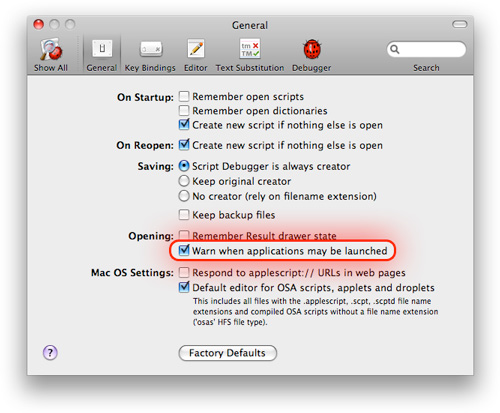
Script Debugger 4.5.1 introduced a new ‘Opening: Warn when applications may be launched’ setting in the General Preferences panel that allows you to turn off the application launch warning when opening scripts. If the delay opening your scripts is slowing down your work or if the warning becomes irritating, you can use this preferences setting to disable the feature.

-
Script Debugger 4.5.2
I’m pleased to announce the release of Script Debugger 4.5.2. Script Debugger 4.5.2 is a free maintenance release that addresses a series of issues that came to light following the release of Script Debugger 4.5.
subscribe via RSS